# 2.10  Flight Restrictions and Unlocking

Model: lite-640t · Manual v1.0.2
Canonical: https://shop.skyflow.ca/learn/autel/evo-lite-enterprise/manuals/evo-lite-640t-v1-0-2/2-10-flight-restrictions-and-unlocking
Source: https://drive.google.com/file/d/1yQTDKasKxbvfVdANOx9bmlPYml-2dkCE/view
Updated: 2026-10-17

EVO Lite 640T Enterprise · SE V2 controller

## Important

[PDF page 32, block 3](https://shop.skyflow.ca/learn/autel/evo-lite-enterprise/manuals/evo-lite-640t-v1-0-2/2-10-flight-restrictions-and-unlocking#p32-b3)

Before flying, please strictly adhere to local laws and regulations and carefully plan the airspace for flight.

[PDF page 32, block 4](https://shop.skyflow.ca/learn/autel/evo-lite-enterprise/manuals/evo-lite-640t-v1-0-2/2-10-flight-restrictions-and-unlocking#p32-b4)

## 2.10.1  Geofence system

[PDF page 32, block 5](https://shop.skyflow.ca/learn/autel/evo-lite-enterprise/manuals/evo-lite-640t-v1-0-2/2-10-flight-restrictions-and-unlocking#p32-b5)

Autel Robotics has developed a geofence system for its drones to ensure safe and legal flights. This system can dynamically update airspace restriction information worldwide. In different restricted zones, the drone's flight functions will be restricted to varying degrees. The geofence system also supports unlocking restricted zones. If users need to execute a flight mission in a specific restricted zone, they can obtain legal authorization for unlocking. The aircraft will then lift the relevant flight restrictions within the authorized period.

[PDF page 32, block 6](https://shop.skyflow.ca/learn/autel/evo-lite-enterprise/manuals/evo-lite-640t-v1-0-2/2-10-flight-restrictions-and-unlocking#p32-b6)

The geofence system does not necessarily align with local laws and regulations. Before each flight, users must independently inquire about and understand local laws, regulations, and regulatory requirements, taking responsibility for their flight safety.

[PDF page 32, block 7](https://shop.skyflow.ca/learn/autel/evo-lite-enterprise/manuals/evo-lite-640t-v1-0-2/2-10-flight-restrictions-and-unlocking#p32-b7)

The EVO Lite Enterprise Series multi-rotor drone is equipped with a built-in geofence system in the flight control system. Before each flight, ensure that the RC can connect to the internet to automatically update airspace restriction information, which will be synchronized to the aircraft. During flight, relevant airspace restriction information will be displayed in real-time on the flight application to ensure the aircraft's safe and legal flight.

[PDF page 32, block 8](https://shop.skyflow.ca/learn/autel/evo-lite-enterprise/manuals/evo-lite-640t-v1-0-2/2-10-flight-restrictions-and-unlocking#p32-b8)

Tips

[PDF page 32, block 9](https://shop.skyflow.ca/learn/autel/evo-lite-enterprise/manuals/evo-lite-640t-v1-0-2/2-10-flight-restrictions-and-unlocking#p32-b9)

Due to the inherent delay in information retrieval, the airspace restriction information of the geofence system may not completely align with the latest local laws and regulations. All information should be based on local laws and regulations.

[PDF page 32, block 10](https://shop.skyflow.ca/learn/autel/evo-lite-enterprise/manuals/evo-lite-640t-v1-0-2/2-10-flight-restrictions-and-unlocking#p32-b10)

For temporary airspace control, Autel Robotics will promptly obtain the corresponding regulatory notices and upload the relevant airspace restriction information to the geofencing system. Users are required to synchronize and update the flight airspace restriction information when conducting flights in the relevant areas.

[PDF page 32, block 11](https://shop.skyflow.ca/learn/autel/evo-lite-enterprise/manuals/evo-lite-640t-v1-0-2/2-10-flight-restrictions-and-unlocking#p32-b11)

## Important

[PDF page 32, block 12](https://shop.skyflow.ca/learn/autel/evo-lite-enterprise/manuals/evo-lite-640t-v1-0-2/2-10-flight-restrictions-and-unlocking#p32-b12)

Please note that when GNSS signal is lost or becomes weak, the flight application will synchronously display a warning "GNSS signal is weak, and geo-awareness may be disabled.", and the aircraft will enter visual positioning mode or attitude mode. At this time, the geofence system will not work and relevant flight restriction functions will not take effect.

[PDF page 32, block 13](https://shop.skyflow.ca/learn/autel/evo-lite-enterprise/manuals/evo-lite-640t-v1-0-2/2-10-flight-restrictions-and-unlocking#p32-b13)

## 2.10.2  Restricted zones

[PDF page 33, block 2](https://shop.skyflow.ca/learn/autel/evo-lite-enterprise/manuals/evo-lite-640t-v1-0-2/2-10-flight-restrictions-and-unlocking#p33-b2)

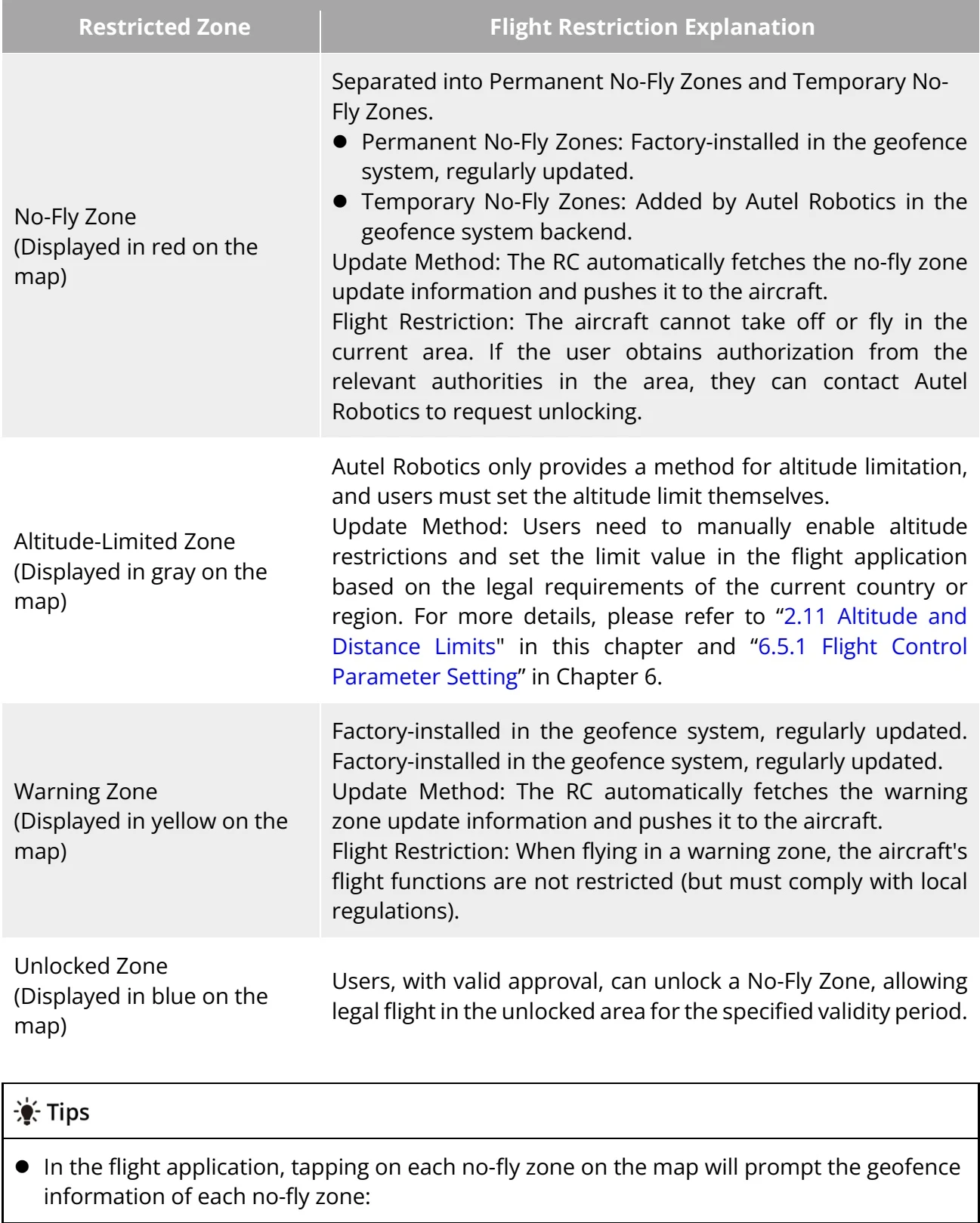
In the geofence system, flight-restricted zones are categorized into four types: No-Fly Zone, Altitude-Limited Zone, Warning Zone, and Unlocked Zone. The flight application provides different prompts based on the zone type.

[PDF page 33, block 3](https://shop.skyflow.ca/learn/autel/evo-lite-enterprise/manuals/evo-lite-640t-v1-0-2/2-10-flight-restrictions-and-unlocking#p33-b3)

<table><tr><td>Restricted Zone</td><td>Flight Restriction Explanation</td></tr><tr><td>No-Fly Zone(Displayed in red on the map)</td><td>Separated into Permanent No-Fly Zones and Temporary No-Fly Zones.Permanent No-Fly Zones: Factory-installed in the geofence system, regularly updated.Temporary No-Fly Zones: Added by Autel Robotics in the geofence system backend.Update Method: The RC automatically fetches the no-fly zone update information and pushes it to the aircraft.Flight Restriction: The aircraft cannot take off or fly in the current area. If the user obtains authorization from the relevant authorities in the area, they can contact Autel Robotics to request unlocking.</td></tr><tr><td>Altitude-Limited Zone(Displayed in gray on the map)</td><td>Autel Robotics only provides a method for altitude limitation, and users must set the altitude limit themselves.Update Method: Users need to manually enable altitude restrictions and set the limit value in the flight application based on the legal requirements of the current country or region. For more details, please refer to &quot;2.11 Altitude and Distance Limits&quot; in this chapter and &quot;6.5.1 Flight Control Parameter Setting&quot; in Chapter 6.</td></tr><tr><td>Warning Zone(Displayed in yellow on the map)</td><td>Factory-installed in the geofence system, regularly updated. Factory-installed in the geofence system, regularly updated.Update Method: The RC automatically fetches the warning zone update information and pushes it to the aircraft.Flight Restriction: When flying in a warning zone, the aircraft&#x27;s flight functions are not restricted (but must comply with local regulations).</td></tr><tr><td>Unlocked Zone(Displayed in blue on the map)</td><td>Users, with valid approval, can unlock a No-Fly Zone, allowing legal flight in the unlocked area for the specified validity period.</td></tr><tr><td colspan="2"></td></tr><tr><td colspan="2">Tips</td></tr><tr><td colspan="2">● In the flight application, tapping on each no-fly zone on the map will prompt the geofence information of each no-fly zone:</td></tr></table>

![Table 2-2 Flight Restrictions in Restricted Zones](https://shop.skyflow.ca/manuals/evo-lite-640t-v1-0-2/f0b6a8f95a5391d9ac93b98f.webp)

[PDF page 33, block 5](https://shop.skyflow.ca/learn/autel/evo-lite-enterprise/manuals/evo-lite-640t-v1-0-2/2-10-flight-restrictions-and-unlocking#p33-b5)

1. No-fly zone: area name, area level (no-fly zone), affiliated area (prefecture-level city), no-fly time (only temporary no-fly zone display).

[PDF page 34, block 2](https://shop.skyflow.ca/learn/autel/evo-lite-enterprise/manuals/evo-lite-640t-v1-0-2/2-10-flight-restrictions-and-unlocking#p34-b2)

2. Height restriction zone: area name, area level (height restriction zone), height restriction (AGL height restriction from the ground), affiliated area (prefecture-level city).

[PDF page 34, block 3](https://shop.skyflow.ca/learn/autel/evo-lite-enterprise/manuals/evo-lite-640t-v1-0-2/2-10-flight-restrictions-and-unlocking#p34-b3)

3. Warning zone: area name, area level (warning zone), height restriction (AGL height restriction from the ground), affiliated area (prefecture-level city).

[PDF page 34, block 4](https://shop.skyflow.ca/learn/autel/evo-lite-enterprise/manuals/evo-lite-640t-v1-0-2/2-10-flight-restrictions-and-unlocking#p34-b4)

4. Unlocked zone: area name, area level (unlocked zone), height restriction (AGL height restriction from the ground), affiliated area (prefecture-level city), validity period.

[PDF page 34, block 5](https://shop.skyflow.ca/learn/autel/evo-lite-enterprise/manuals/evo-lite-640t-v1-0-2/2-10-flight-restrictions-and-unlocking#p34-b5)

## Remarks

[PDF page 34, block 6](https://shop.skyflow.ca/learn/autel/evo-lite-enterprise/manuals/evo-lite-640t-v1-0-2/2-10-flight-restrictions-and-unlocking#p34-b6)

Before conducting a flight, users must understand the aircraft height restrictions in their area and set them correctly in the flight application.

[PDF page 34, block 7](https://shop.skyflow.ca/learn/autel/evo-lite-enterprise/manuals/evo-lite-640t-v1-0-2/2-10-flight-restrictions-and-unlocking#p34-b7)

Please note that it is not recommended to fly across adjacent areas with different legal height restrictions. The height limit set by the user is only valid for the area where the takeoff point is located and cannot guarantee compliance with the relevant regulations of the cross-area. Users should adjust the corresponding height limit in time when flying across areas.

[PDF page 34, block 8](https://shop.skyflow.ca/learn/autel/evo-lite-enterprise/manuals/evo-lite-640t-v1-0-2/2-10-flight-restrictions-and-unlocking#p34-b8)

The aircraft has a certain initial speed when flying in the air. To prevent the aircraft from mistakenly entering the no-fly zone (when not lifted) and the warning zone, the geofence system sets a buffer zone with a horizontal distance of 200 m and a vertical distance of 50 m outside the boundaries of the no-fly zone and warning zone.

[PDF page 34, block 9](https://shop.skyflow.ca/learn/autel/evo-lite-enterprise/manuals/evo-lite-640t-v1-0-2/2-10-flight-restrictions-and-unlocking#p34-b9)

<table><tr><td>Buffer Zone Type</td><td>Buffer Zone Description</td></tr><tr><td>Buffer zone of the no-fly zone</td><td>When an aircraft flies from the outside toward a no-fly zone: When the aircraft approaches the buffer zone boundary, the flight application will display a warning alert “The aircraft is close to the no-fly zone.” and the aircraft will automatically start to decelerate and eventually brake and hover within the buffer zone.</td></tr><tr><td>Buffer zone of the warning zone</td><td>When an aircraft flies from the outside toward a warning zone: The aircraft can directly fly into the restricted altitude zone without limitation.When the aircraft approaches the warning zone boundary, the flight application will display a warning alert “The aircraft is close to the warning zone.” and after entering the warning zone, the App will display “Aircraft enters warning zone” to remind users to be cautious.</td></tr></table>

![Table 2-3 Buffer Zone Description](https://shop.skyflow.ca/manuals/evo-lite-640t-v1-0-2/f06342b95ff035ab5f166ecc.webp)

[PDF page 34, block 11](https://shop.skyflow.ca/learn/autel/evo-lite-enterprise/manuals/evo-lite-640t-v1-0-2/2-10-flight-restrictions-and-unlocking#p34-b11)

2.10  Flight Restrictions and Unlocking — manufacturer illustration

![2.10  Flight Restrictions and Unlocking — manufacturer illustration](https://shop.skyflow.ca/manuals/evo-lite-640t-v1-0-2/a88f0ae850c9bc8a762b7fa8.webp)

[PDF page 35, block 2](https://shop.skyflow.ca/learn/autel/evo-lite-enterprise/manuals/evo-lite-640t-v1-0-2/2-10-flight-restrictions-and-unlocking#p35-b2)

## Remarks

[PDF page 35, block 3](https://shop.skyflow.ca/learn/autel/evo-lite-enterprise/manuals/evo-lite-640t-v1-0-2/2-10-flight-restrictions-and-unlocking#p35-b3)

If the aircraft not lifted mistakenly enters the no-fly zone in the absence of GNSS signal, the aircraft will automatically land after regaining the GNSS signal, and during the landing process, the throttle joystick does not work, but users can control the aircraft to move horizontally so as to land in a safer place.

[PDF page 35, block 4](https://shop.skyflow.ca/learn/autel/evo-lite-enterprise/manuals/evo-lite-640t-v1-0-2/2-10-flight-restrictions-and-unlocking#p35-b4)

When the aircraft hovers in place in the buffer zone, users can control the aircraft to exit the buffer zone along the normal direction of the buffer zone boundary.

[PDF page 35, block 5](https://shop.skyflow.ca/learn/autel/evo-lite-enterprise/manuals/evo-lite-640t-v1-0-2/2-10-flight-restrictions-and-unlocking#p35-b5)

When conducting a flight in the unlocked zone, if within the airspace and valid time of the lifting authorization, the aircraft can fly normally; once it exceeds the airspace and valid time of the lifting authorization, the aircraft will execute the airspace restriction operation of the current area.

[PDF page 35, block 6](https://shop.skyflow.ca/learn/autel/evo-lite-enterprise/manuals/evo-lite-640t-v1-0-2/2-10-flight-restrictions-and-unlocking#p35-b6)

## 2.10.3  Import UGZ

[PDF page 35, block 7](https://shop.skyflow.ca/learn/autel/evo-lite-enterprise/manuals/evo-lite-640t-v1-0-2/2-10-flight-restrictions-and-unlocking#p35-b7)

The aircraft supports the UAS Geographical Zones (UGZ) import function, allowing users to obtain the restricted flight zone data file of their country or region and upload it to the flight control system of the aircraft. When the aircraft approaches the relevant airspace during flight, it will execute corresponding status responses (including alerts and deceleration) to ensure flight safety.

[PDF page 35, block 8](https://shop.skyflow.ca/learn/autel/evo-lite-enterprise/manuals/evo-lite-640t-v1-0-2/2-10-flight-restrictions-and-unlocking#p35-b8)

## Tips

[PDF page 35, block 9](https://shop.skyflow.ca/learn/autel/evo-lite-enterprise/manuals/evo-lite-640t-v1-0-2/2-10-flight-restrictions-and-unlocking#p35-b9)

The UGZ import function supports importing JSON-type no-fly zone data files. Users can import no-fly zone data files published by the aviation management department.

[PDF page 35, block 10](https://shop.skyflow.ca/learn/autel/evo-lite-enterprise/manuals/evo-lite-640t-v1-0-2/2-10-flight-restrictions-and-unlocking#p35-b10)

Operation method: Copy the JSON file to the root directory of the RC, on the map interface of the flight application, tap illustrated > "Import Geo-fence" on the right side. Follow the interface instructions for relevant operations.

![Original instruction with its control symbol](https://shop.skyflow.ca/manuals/evo-lite-640t-v1-0-2/c069939a48c3e3f24f8355a6.webp)

[PDF page 35, block 11](https://shop.skyflow.ca/learn/autel/evo-lite-enterprise/manuals/evo-lite-640t-v1-0-2/2-10-flight-restrictions-and-unlocking#p35-b11)

## 2.10.4  Unlocking no-fly zones

[PDF page 35, block 12](https://shop.skyflow.ca/learn/autel/evo-lite-enterprise/manuals/evo-lite-640t-v1-0-2/2-10-flight-restrictions-and-unlocking#p35-b12)

To apply for unlocking a specific airspace within a no-fly zone, prepare the following information in advance according to your flight plan:

[PDF page 35, block 13](https://shop.skyflow.ca/learn/autel/evo-lite-enterprise/manuals/evo-lite-640t-v1-0-2/2-10-flight-restrictions-and-unlocking#p35-b13)

Identity and contact information of the applicant.

[PDF page 35, block 14](https://shop.skyflow.ca/learn/autel/evo-lite-enterprise/manuals/evo-lite-640t-v1-0-2/2-10-flight-restrictions-and-unlocking#p35-b14)

Unlock permit: a scanned copy or image of the valid permit for the flight application issued by local authorities (local public security bureau, aviation management department, or any other relevant organization/agency).

[PDF page 35, block 15](https://shop.skyflow.ca/learn/autel/evo-lite-enterprise/manuals/evo-lite-640t-v1-0-2/2-10-flight-restrictions-and-unlocking#p35-b15)

Unlocked zone: a cylindrical area. It includes the following information:

[PDF page 35, block 16](https://shop.skyflow.ca/learn/autel/evo-lite-enterprise/manuals/evo-lite-640t-v1-0-2/2-10-flight-restrictions-and-unlocking#p35-b16)

1. Name of the unlocked zone.

[PDF page 35, block 17](https://shop.skyflow.ca/learn/autel/evo-lite-enterprise/manuals/evo-lite-640t-v1-0-2/2-10-flight-restrictions-and-unlocking#p35-b17)

2. Coordinates of the center point of the flight airspace plane (latitude and longitude, with 6 decimal places).

[PDF page 35, block 18](https://shop.skyflow.ca/learn/autel/evo-lite-enterprise/manuals/evo-lite-640t-v1-0-2/2-10-flight-restrictions-and-unlocking#p35-b18)

3. Radius of the flight airspace plane (in meters, with 2 decimal places).

[PDF page 35, block 19](https://shop.skyflow.ca/learn/autel/evo-lite-enterprise/manuals/evo-lite-640t-v1-0-2/2-10-flight-restrictions-and-unlocking#p35-b19)

4. Flight altitude (in meters, with 2 decimal places).

[PDF page 35, block 20](https://shop.skyflow.ca/learn/autel/evo-lite-enterprise/manuals/evo-lite-640t-v1-0-2/2-10-flight-restrictions-and-unlocking#p35-b20)

Unlock date: Enter the unlock date according to the valid permit. The date is recommended

[PDF page 35, block 21](https://shop.skyflow.ca/learn/autel/evo-lite-enterprise/manuals/evo-lite-640t-v1-0-2/2-10-flight-restrictions-and-unlocking#p35-b21)

to be accurate to day/hour/second.

[PDF page 36, block 2](https://shop.skyflow.ca/learn/autel/evo-lite-enterprise/manuals/evo-lite-640t-v1-0-2/2-10-flight-restrictions-and-unlocking#p36-b2)

Aircraft S/N (Serial number): Multiple serial numbers can be applied at once.

[PDF page 36, block 3](https://shop.skyflow.ca/learn/autel/evo-lite-enterprise/manuals/evo-lite-640t-v1-0-2/2-10-flight-restrictions-and-unlocking#p36-b3)

Autel account of UAS operator: Multiple accounts can be applied at once.

[PDF page 36, block 4](https://shop.skyflow.ca/learn/autel/evo-lite-enterprise/manuals/evo-lite-640t-v1-0-2/2-10-flight-restrictions-and-unlocking#p36-b4)

Log in to the official website of Autel Robotics at  www.autelrobotics.com/service/noflight/,  enter the relevant information, and complete the waiver application.

[PDF page 36, block 5](https://shop.skyflow.ca/learn/autel/evo-lite-enterprise/manuals/evo-lite-640t-v1-0-2/2-10-flight-restrictions-and-unlocking#p36-b5)

After the unlocking application is approved, you will obtain an unlock permit. The permit contains the aircraft serial number, UAS operator account, and unlocked zone (including the validity period).

[PDF page 36, block 6](https://shop.skyflow.ca/learn/autel/evo-lite-enterprise/manuals/evo-lite-640t-v1-0-2/2-10-flight-restrictions-and-unlocking#p36-b6)

Tips

[PDF page 36, block 7](https://shop.skyflow.ca/learn/autel/evo-lite-enterprise/manuals/evo-lite-640t-v1-0-2/2-10-flight-restrictions-and-unlocking#p36-b7)

After submitting the lifting application, the approval will be completed within 24 hours, and the lifting will be completed within 48 hours.

[PDF page 36, block 8](https://shop.skyflow.ca/learn/autel/evo-lite-enterprise/manuals/evo-lite-640t-v1-0-2/2-10-flight-restrictions-and-unlocking#p36-b8)