# 6.2  Main Interface

Model: lite-640t · Manual v1.0.2
Canonical: https://shop.skyflow.ca/learn/autel/evo-lite-enterprise/manuals/evo-lite-640t-v1-0-2/6-2-main-interface
Source: https://drive.google.com/file/d/1yQTDKasKxbvfVdANOx9bmlPYml-2dkCE/view
Updated: 2026-10-17

EVO Lite 640T Enterprise · SE V2 controller

After turning on the remote controller, you will automatically enter the main interface.

[PDF page 99, block 8](https://shop.skyflow.ca/learn/autel/evo-lite-enterprise/manuals/evo-lite-640t-v1-0-2/6-2-main-interface#p99-b8)

Main Interface of the Flight Application (EVO Lite 640T Enterprise Aircraft)

![Main Interface of the Flight Application (EVO Lite 640T Enterprise Aircraft)](https://shop.skyflow.ca/manuals/evo-lite-640t-v1-0-2/3d2822dcdaa8e8bc226f91cf.webp)

[PDF page 99, block 9](https://shop.skyflow.ca/learn/autel/evo-lite-enterprise/manuals/evo-lite-640t-v1-0-2/6-2-main-interface#p99-b9)

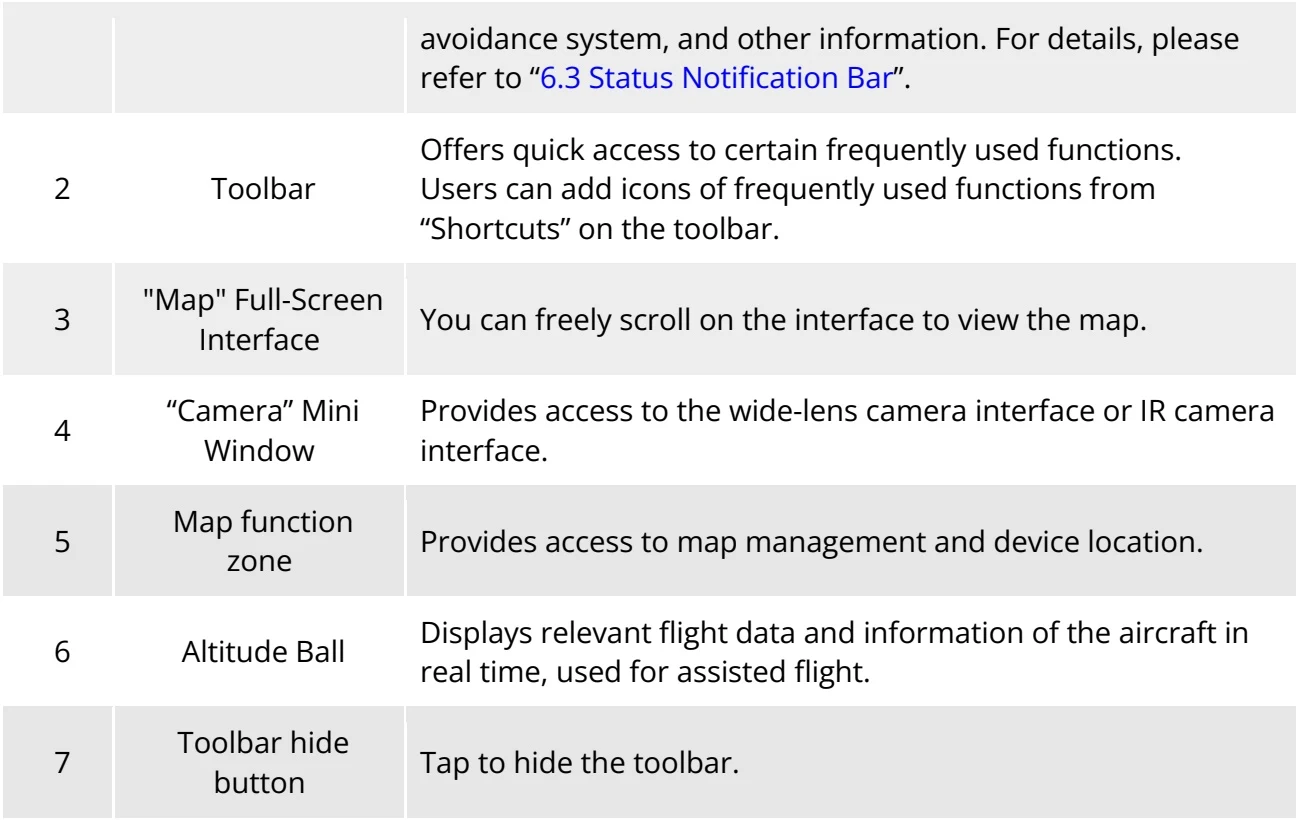
<table><tr><td>No.</td><td>Name</td><td>Description</td></tr><tr><td>1</td><td>Status Notification Bar</td><td>Displays the flight mode, warning information, flight status, battery level of the remote controller and aircraft, remote controller signal, GNSS signal, operating status of the obstacle</td></tr></table>

![Table 6-1 Details of the Main Interface of the Flight Application](https://shop.skyflow.ca/manuals/evo-lite-640t-v1-0-2/8bf4efe97d468426c1a551d7.webp)

[PDF page 99, block 12](https://shop.skyflow.ca/learn/autel/evo-lite-enterprise/manuals/evo-lite-640t-v1-0-2/6-2-main-interface#p99-b12)

<table><tr><td></td><td></td><td>avoidance system, and other information. For details, please refer to “6.3 Status Notification Bar”.</td></tr><tr><td>2</td><td>Toolbar</td><td>Offers quick access to certain frequently used functions.Users can add icons of frequently used functions from “Shortcuts” on the toolbar.</td></tr><tr><td>3</td><td>&quot;Map&quot; Full-Screen Interface</td><td>You can freely scroll on the interface to view the map.</td></tr><tr><td>4</td><td>“Camera” Mini Window</td><td>Provides access to the wide-lens camera interface or IR camera interface.</td></tr><tr><td>5</td><td>Map function zone</td><td>Provides access to map management and device location.</td></tr><tr><td>6</td><td>Altitude Ball</td><td>Displays relevant flight data and information of the aircraft in real time, used for assisted flight.</td></tr><tr><td>7</td><td>Toolbar hide button</td><td>Tap to hide the toolbar.</td></tr></table>

![Manufacturer reference table](https://shop.skyflow.ca/manuals/evo-lite-640t-v1-0-2/aa3429250aaa94f592307fd4.webp)

[PDF page 100, block 2](https://shop.skyflow.ca/learn/autel/evo-lite-enterprise/manuals/evo-lite-640t-v1-0-2/6-2-main-interface#p100-b2)

<ul><li>Theflight applicationcan automatically identify the gimbal camera model mounted on the aircraft and adjust the display content of the main interface accordingly. When an aircraft with a different gimbal camera model is connected to the remote controller, the display content on the main interface of the flight application may vary. This chapter is based on EVO Lite 640T Enterprise Aircraft for description.</li></ul>

![Tip](https://shop.skyflow.ca/manuals/evo-lite-640t-v1-0-2/30e1b59a5857b0e5bccea3e9.webp)

[PDF page 100, block 3](https://shop.skyflow.ca/learn/autel/evo-lite-enterprise/manuals/evo-lite-640t-v1-0-2/6-2-main-interface#p100-b3)

<table><tr><td>No.</td><td>Icon</td><td>Meaning</td><td>Description</td></tr><tr><td>1</td><td></td><td>Dual-Screen Mode</td><td>When using EVO Lite 640T Enterprise aircraft, tap this icon to enter the dual-screen mode.In the dual-screen mode, the left and right sides of the remote controller screen can display any two of the 3 interfaces, which are &quot;Map&quot;, &quot;Wide Angle&quot;, and &quot;IR&quot;.</td></tr><tr><td>2</td><td></td><td>Maximize Window</td><td>Tap this icon to adjust a preview interface to the corresponding full-screen interface.</td></tr></table>

![Table 6-2 Multi-Screen Switching Operations on the Main Interface](https://shop.skyflow.ca/manuals/evo-lite-640t-v1-0-2/61f224f6d899cbe91074c30d.webp)

[PDF page 100, block 5](https://shop.skyflow.ca/learn/autel/evo-lite-enterprise/manuals/evo-lite-640t-v1-0-2/6-2-main-interface#p100-b5)

<ul><li>In wide angle or infrared camera interface, you can swipe up anywhere to hide all function icons and swipe down to restore the display of function icons.</li></ul>

![Tip](https://shop.skyflow.ca/manuals/evo-lite-640t-v1-0-2/1da4dd1a3db54dd21c0e7745.webp)

[PDF page 100, block 6](https://shop.skyflow.ca/learn/autel/evo-lite-enterprise/manuals/evo-lite-640t-v1-0-2/6-2-main-interface#p100-b6)