# 6.4  Toolbar

Model: lite-640t · Manual v1.0.2
Canonical: https://shop.skyflow.ca/learn/autel/evo-lite-enterprise/manuals/evo-lite-640t-v1-0-2/6-4-toolbar
Source: https://drive.google.com/file/d/1yQTDKasKxbvfVdANOx9bmlPYml-2dkCE/view
Updated: 2026-10-17

EVO Lite 640T Enterprise · SE V2 controller

The toolbar is displayed at the bottom of the system status notification bar of the flight application, which allows you to quickly activate certain functions.

[PDF page 102, block 4](https://shop.skyflow.ca/learn/autel/evo-lite-enterprise/manuals/evo-lite-640t-v1-0-2/6-4-toolbar#p102-b4)

In the toolbar, you can long press and drag the function icons to customize the sorting. At the same time, you can also tap on the illustrated icon to enter "Shortcuts" and then tap on the illustrated icon on the right side of "Shortcuts" to add a function icon into or delete a function icon from the toolbar, as well as add function icons from shorts to toolbar.

![Original instruction with its control symbol](https://shop.skyflow.ca/manuals/evo-lite-640t-v1-0-2/4689b180d837d285145a9307.webp)

[PDF page 102, block 5](https://shop.skyflow.ca/learn/autel/evo-lite-enterprise/manuals/evo-lite-640t-v1-0-2/6-4-toolbar#p102-b5)

<ul><li>You can add a maximum of 12function icons to the toolbar.Some functions may need support from aircraft hardware and unavailablefunctions will be displayed in grey.</li></ul>

![Tip](https://shop.skyflow.ca/manuals/evo-lite-640t-v1-0-2/3cad37741222af3538684a63.webp)

[PDF page 102, block 6](https://shop.skyflow.ca/learn/autel/evo-lite-enterprise/manuals/evo-lite-640t-v1-0-2/6-4-toolbar#p102-b6)

Toolbar

![Toolbar](https://shop.skyflow.ca/manuals/evo-lite-640t-v1-0-2/bb74bc023b0a394abbc5d77a.webp)

[PDF page 103, block 2](https://shop.skyflow.ca/learn/autel/evo-lite-enterprise/manuals/evo-lite-640t-v1-0-2/6-4-toolbar#p103-b2)

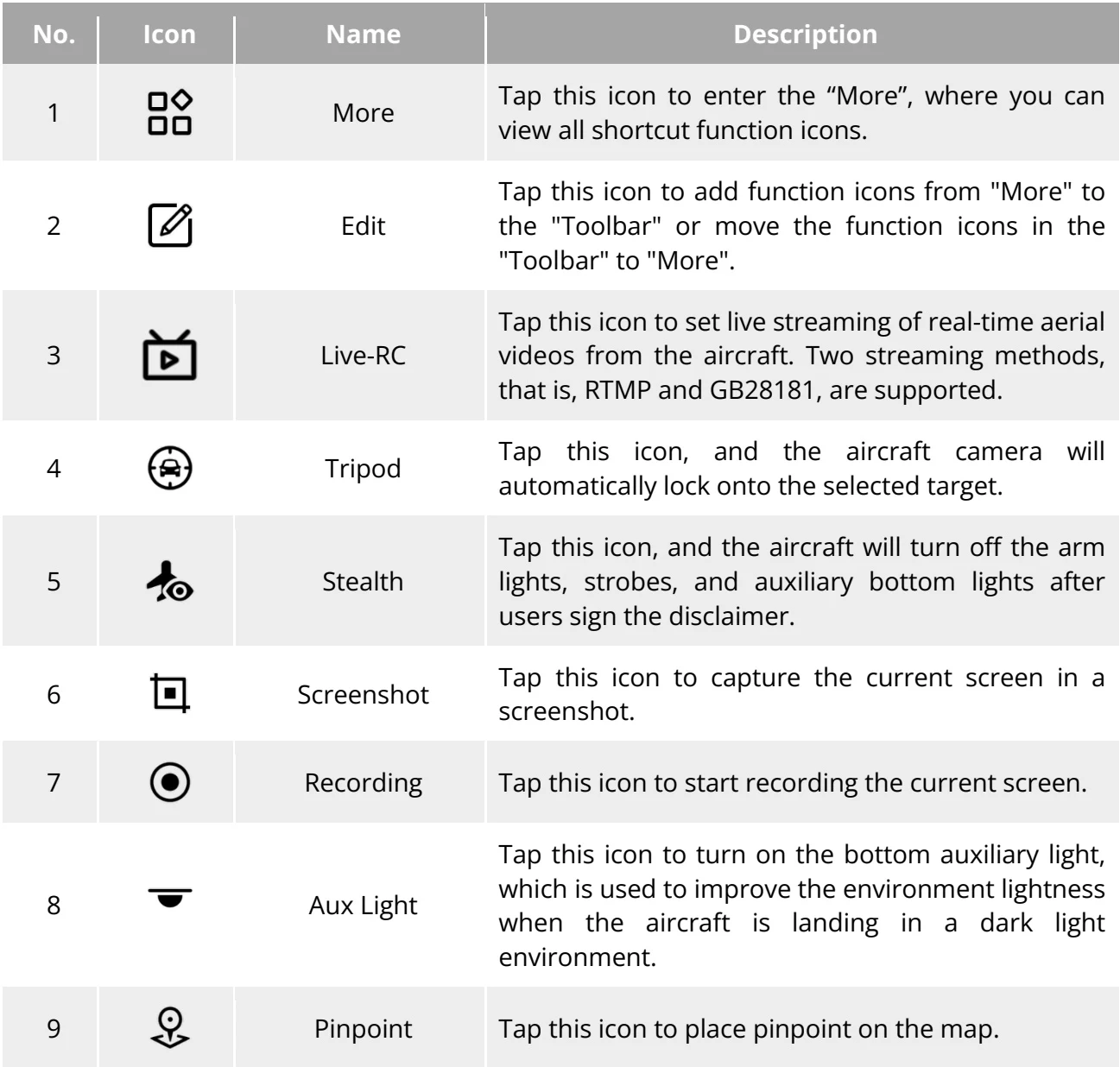
<table><tr><td>No.</td><td>Icon</td><td>Name</td><td>Description</td></tr><tr><td>1</td><td></td><td>More</td><td>Tap this icon to enter the &quot;More&quot;, where you can view all shortcut function icons.</td></tr><tr><td>2</td><td></td><td>Edit</td><td>Tap this icon to add function icons from &quot;More&quot; to the &quot;Toolbar&quot; or move the function icons in the &quot;Toolbar&quot; to &quot;More&quot;.</td></tr><tr><td>3</td><td></td><td>Live-RC</td><td>Tap this icon to set live streaming of real-time aerial videos from the aircraft. Two streaming methods, that is, RTMP and GB28181, are supported.</td></tr><tr><td>4</td><td></td><td>Tripod</td><td>Tap this icon, and the aircraft camera will automatically lock onto the selected target.</td></tr><tr><td>5</td><td></td><td>Stealth</td><td>Tap this icon, and the aircraft will turn off the arm lights, strobes, and auxiliary bottom lights after users sign the disclaimer.</td></tr><tr><td>6</td><td></td><td>Screenshot</td><td>Tap this icon to capture the current screen in a screenshot.</td></tr><tr><td>7</td><td></td><td>Recording</td><td>Tap this icon to start recording the current screen.</td></tr><tr><td>8</td><td></td><td>Aux Light</td><td>Tap this icon to turn on the bottom auxiliary light, which is used to improve the environment lightness when the aircraft is landing in a dark light environment.</td></tr><tr><td>9</td><td></td><td>Pinpoint</td><td>Tap this icon to place pinpoint on the map.</td></tr></table>

![Table 6-4 Toolbar Details](https://shop.skyflow.ca/manuals/evo-lite-640t-v1-0-2/a5c5c27fd3142f54341e08c2.webp)

[PDF page 103, block 5](https://shop.skyflow.ca/learn/autel/evo-lite-enterprise/manuals/evo-lite-640t-v1-0-2/6-4-toolbar#p103-b5)

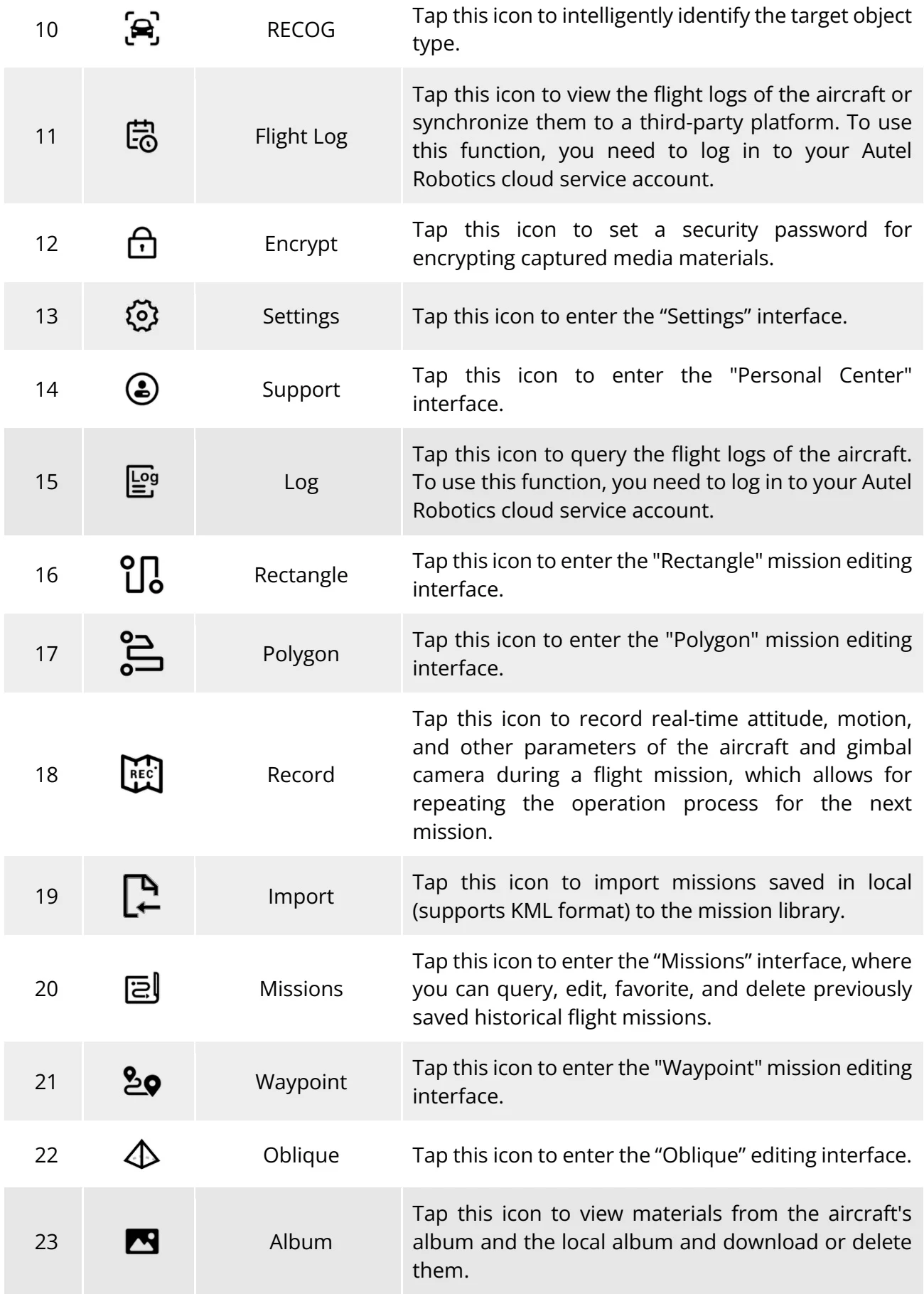
<table><tr><td>10</td><td></td><td>RECOG</td><td>Tap this icon to intelligently identify the target object type.</td></tr><tr><td>11</td><td></td><td>Flight Log</td><td>Tap this icon to view the flight logs of the aircraft or synchronize them to a third-party platform. To use this function, you need to log in to your Autel Robotics cloud service account.</td></tr><tr><td>12</td><td></td><td>Encrypt</td><td>Tap this icon to set a security password for encrypting captured media materials.</td></tr><tr><td>13</td><td></td><td>Settings</td><td>Tap this icon to enter the &quot;Settings&quot; interface.</td></tr><tr><td>14</td><td></td><td>Support</td><td>Tap this icon to enter the &quot;Personal Center&quot; interface.</td></tr><tr><td>15</td><td></td><td>Log</td><td>Tap this icon to query the flight logs of the aircraft. To use this function, you need to log in to your Autel Robotics cloud service account.</td></tr><tr><td>16</td><td></td><td>Rectangle</td><td>Tap this icon to enter the &quot;Rectangle&quot; mission editing interface.</td></tr><tr><td>17</td><td></td><td>Polygon</td><td>Tap this icon to enter the &quot;Polygon&quot; mission editing interface.</td></tr><tr><td>18</td><td></td><td>Record</td><td>Tap this icon to record real-time attitude, motion, and other parameters of the aircraft and gimbal camera during a flight mission, which allows for repeating the operation process for the next mission.</td></tr><tr><td>19</td><td></td><td>Import</td><td>Tap this icon to import missions saved in local (supports KML format) to the mission library.</td></tr><tr><td>20</td><td></td><td>Missions</td><td>Tap this icon to enter the &quot;Missions&quot; interface, where you can query, edit, favorite, and delete previously saved historical flight missions.</td></tr><tr><td>21</td><td></td><td>Waypoint</td><td>Tap this icon to enter the &quot;Waypoint&quot; mission editing interface.</td></tr><tr><td>22</td><td></td><td>Oblique</td><td>Tap this icon to enter the &quot;Oblique&quot; editing interface.</td></tr><tr><td>23</td><td></td><td>Album</td><td>Tap this icon to view materials from the aircraft&#x27;s album and the local album and download or delete them.</td></tr></table>

![Manufacturer reference table](https://shop.skyflow.ca/manuals/evo-lite-640t-v1-0-2/d9ef5d7b52d070346042e7a7.webp)

[PDF page 104, block 2](https://shop.skyflow.ca/learn/autel/evo-lite-enterprise/manuals/evo-lite-640t-v1-0-2/6-4-toolbar#p104-b2)

<table><tr><td>24</td><td></td><td>Pro Setting</td><td>Tap this icon to make professional settings for the gimbal camera parameters.</td></tr><tr><td>25</td><td></td><td>Brightness</td><td>Tap this icon to move the slider left and right to adjust the brightness of the camera.</td></tr><tr><td>26</td><td></td><td>Defog</td><td>Tap this icon to make the shooting or recording scene more transparent and enhance color contrast, which is used to eliminate the &quot;fogging phenomenon&quot; in the picture or the lack of picture clarity caused by smog.</td></tr></table>

![Manufacturer reference table](https://shop.skyflow.ca/manuals/evo-lite-640t-v1-0-2/c6a84958093bd78ba1da3d5e.webp)

[PDF page 105, block 2](https://shop.skyflow.ca/learn/autel/evo-lite-enterprise/manuals/evo-lite-640t-v1-0-2/6-4-toolbar#p105-b2)