
Watch the complete tutorial
Position the landing marker and align the aircraft
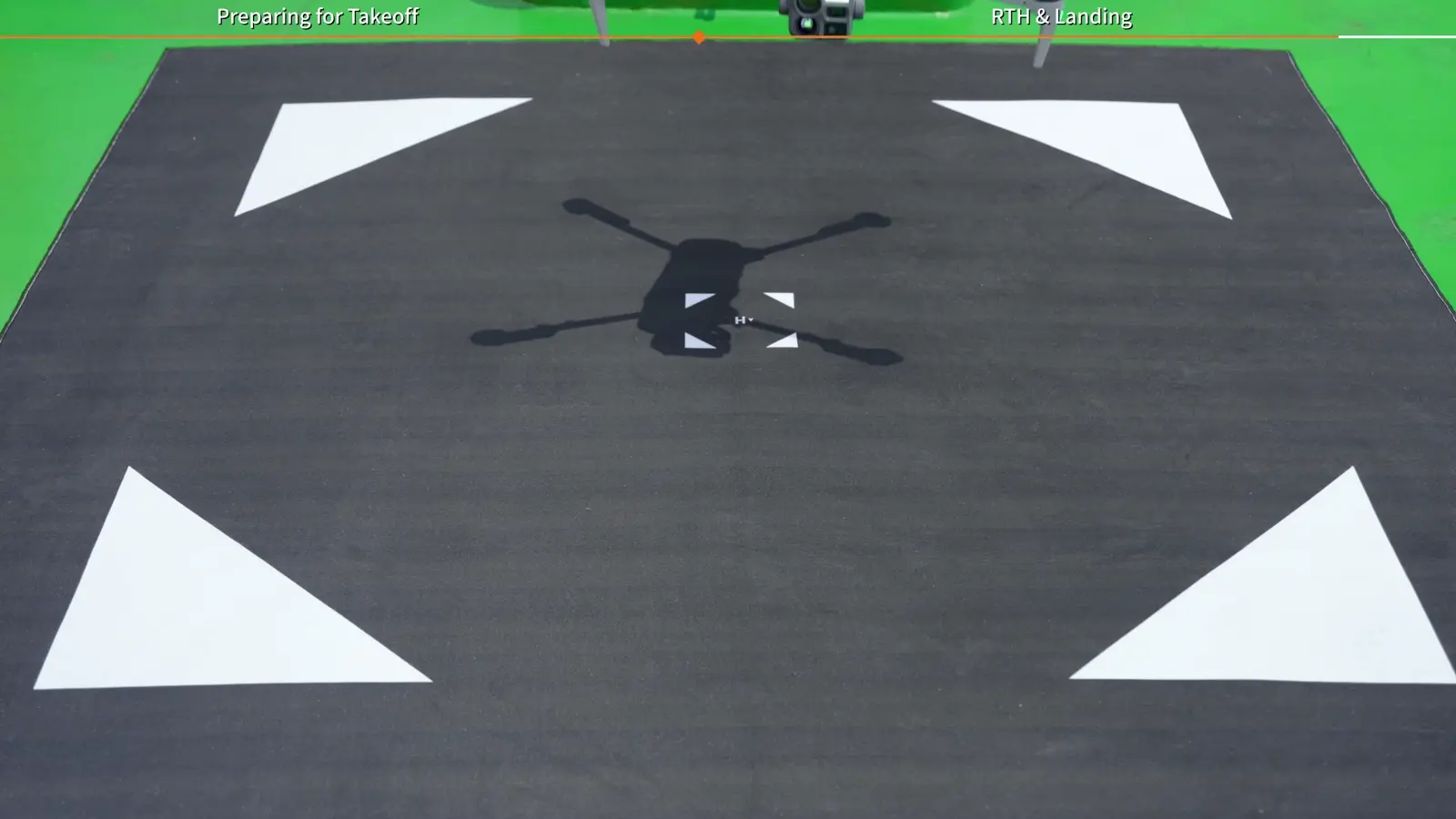
Lay the landing marker on the stern deck and place the aircraft at its centre with the nose pointing in the vessel's direction of travel. The marker is part of the visual landing workflow, so its placement and visibility belong in the launch preparation.
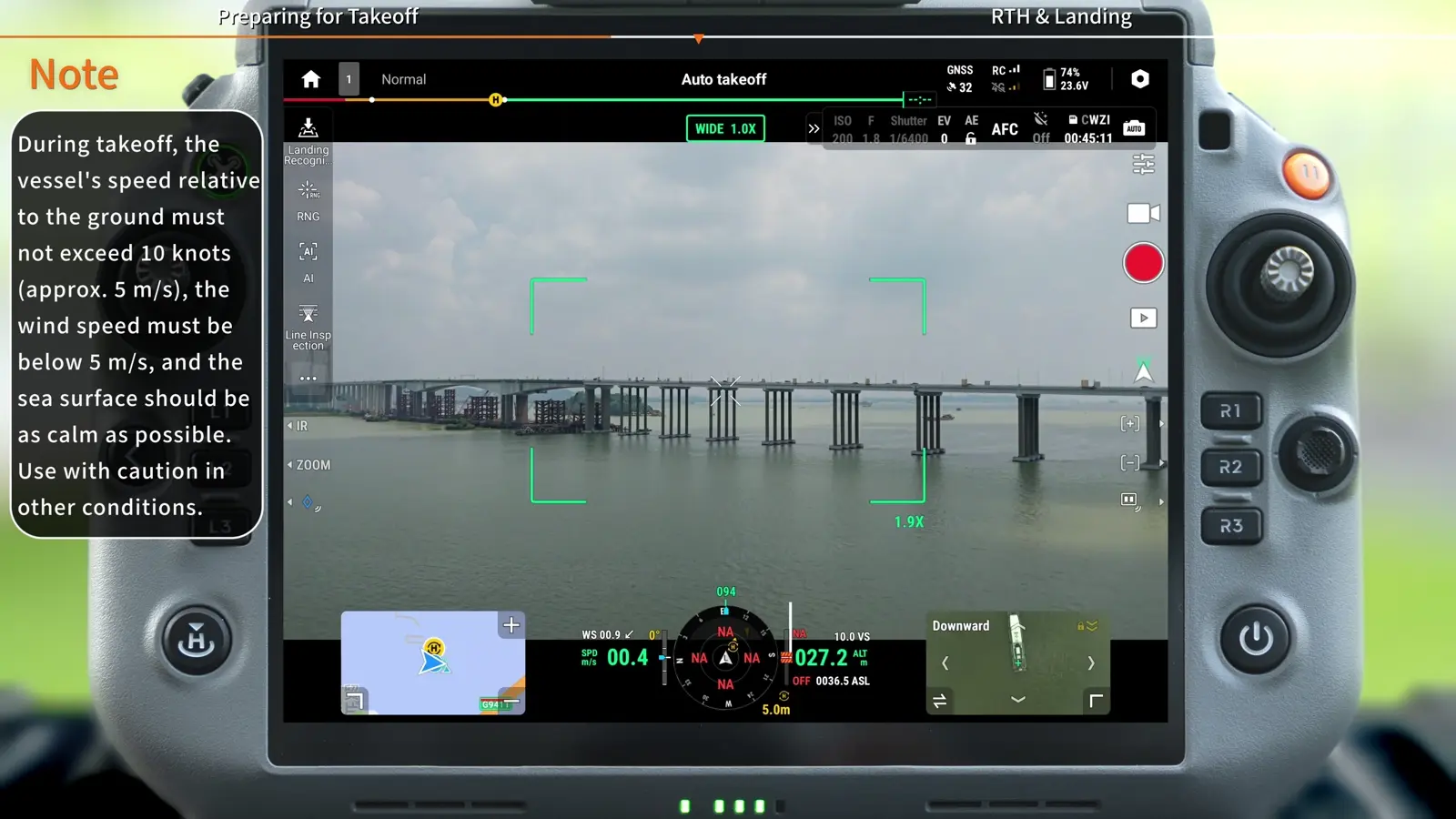
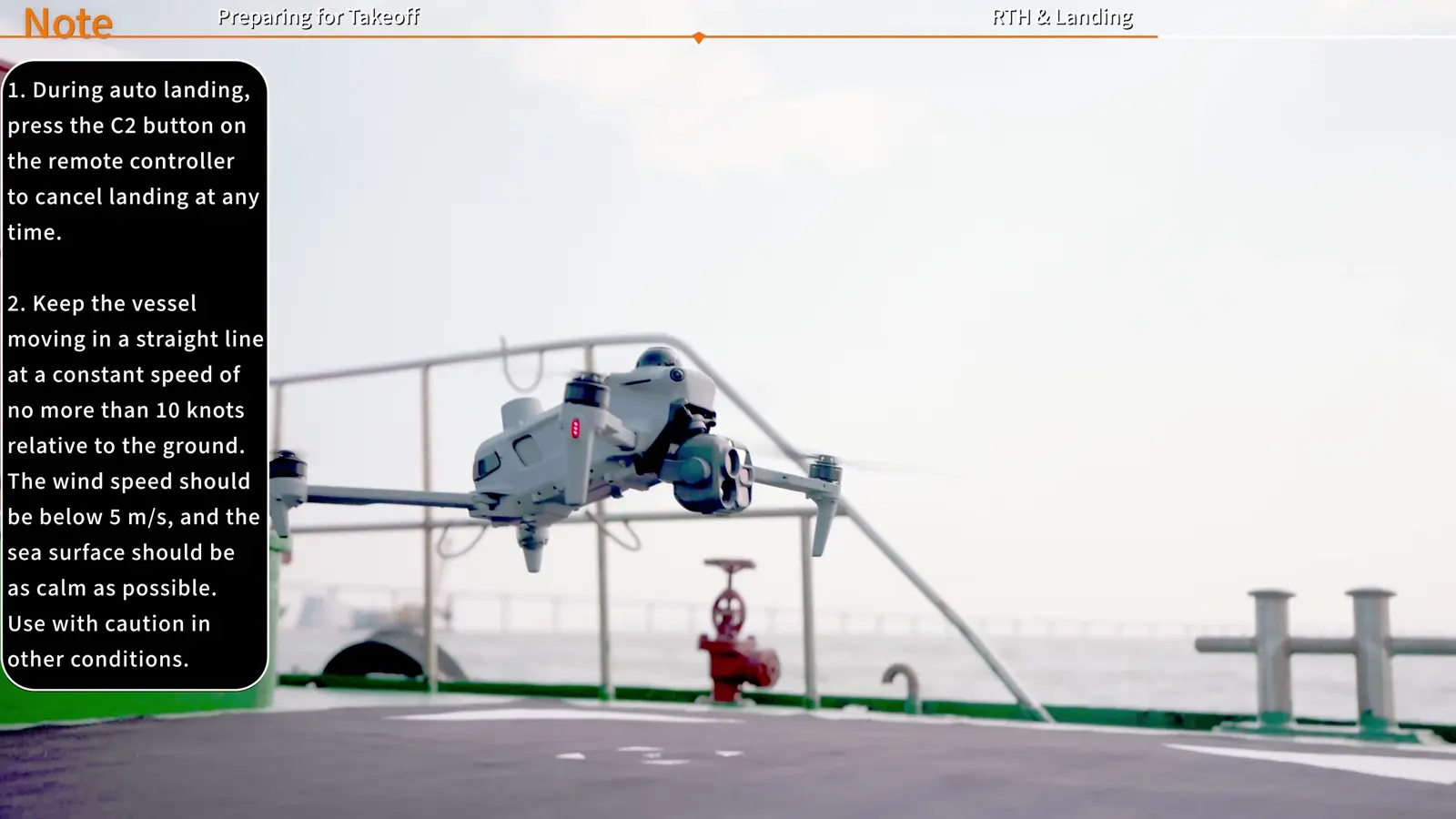
The on-screen operating conditions specify a straight, steady vessel course, speed no more than 10 knots relative to the ground, wind below 5 m/s and a sea surface as calm as possible. Keep the area above the takeoff point clear and the aircraft’s lower sensors unobstructed.
Prepare a deck area of at least 3 m × 3 m that is flat, clear of debris and uniform in colour, preferably dark. DJI specifies 20 metres of clear space directly above it. Obtain the ship-based takeoff and landing marker from the Matrice 5T downloads page linked below.
- Place the marker on the stern deck.
- Centre the aircraft on it, nose aligned with the vessel's direction of travel.
- Power on the aircraft and controller.
- Wait for the aircraft heading to align with the vessel heading.
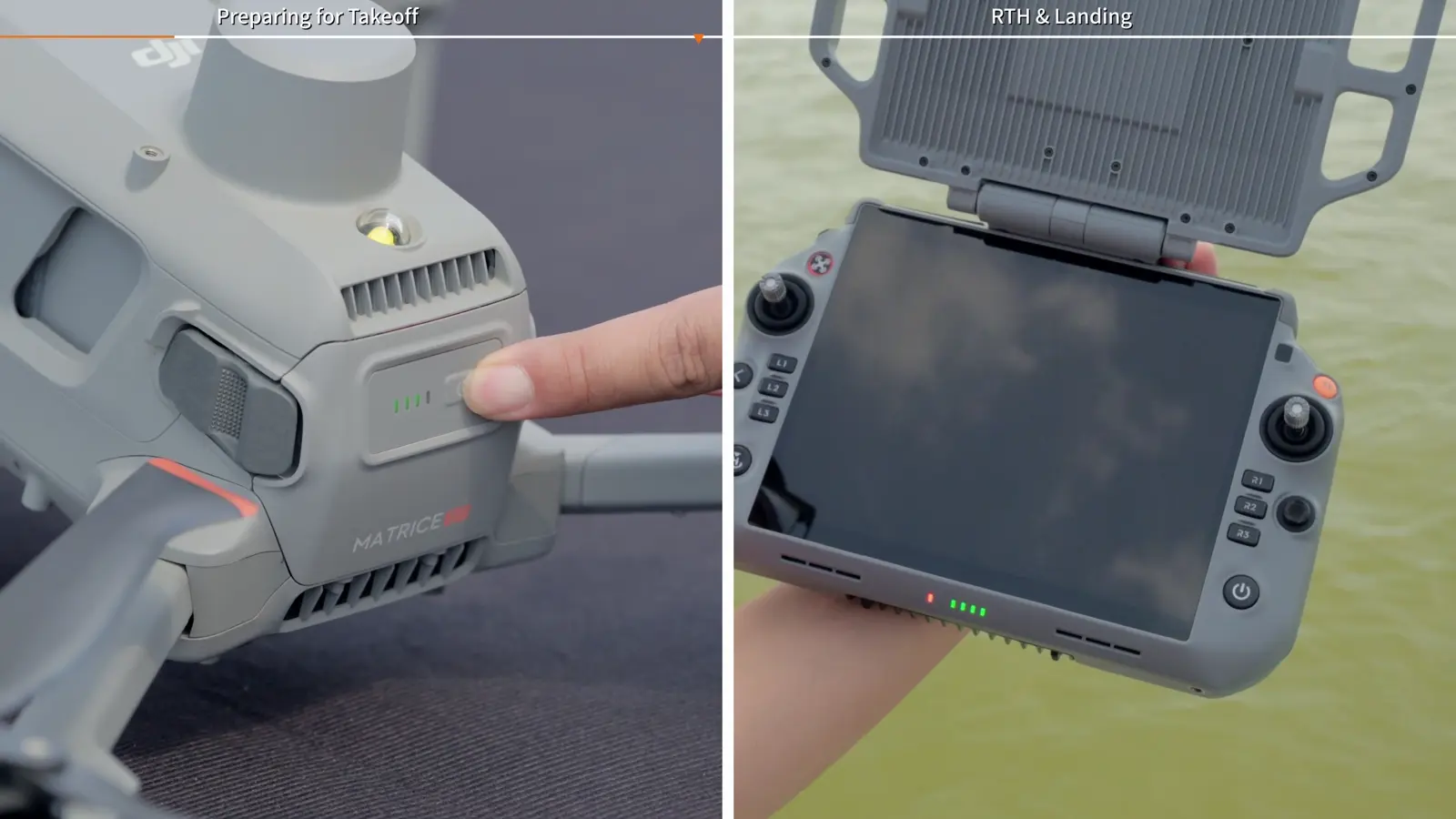
Resolve heading alignment before takeoff
If the headings remain unaligned, the tutorial demonstrates holding the aircraft and moving it back and forth along the heading. This is a pre-takeoff alignment step, with the aircraft on the deck and before motor start. Return to the setup sequence once the headings agree.
A shared crew briefing should identify who handles the aircraft, who operates the controller and who coordinates vessel movement. That makes the transition from deck preparation to flight deliberate and easy to communicate.
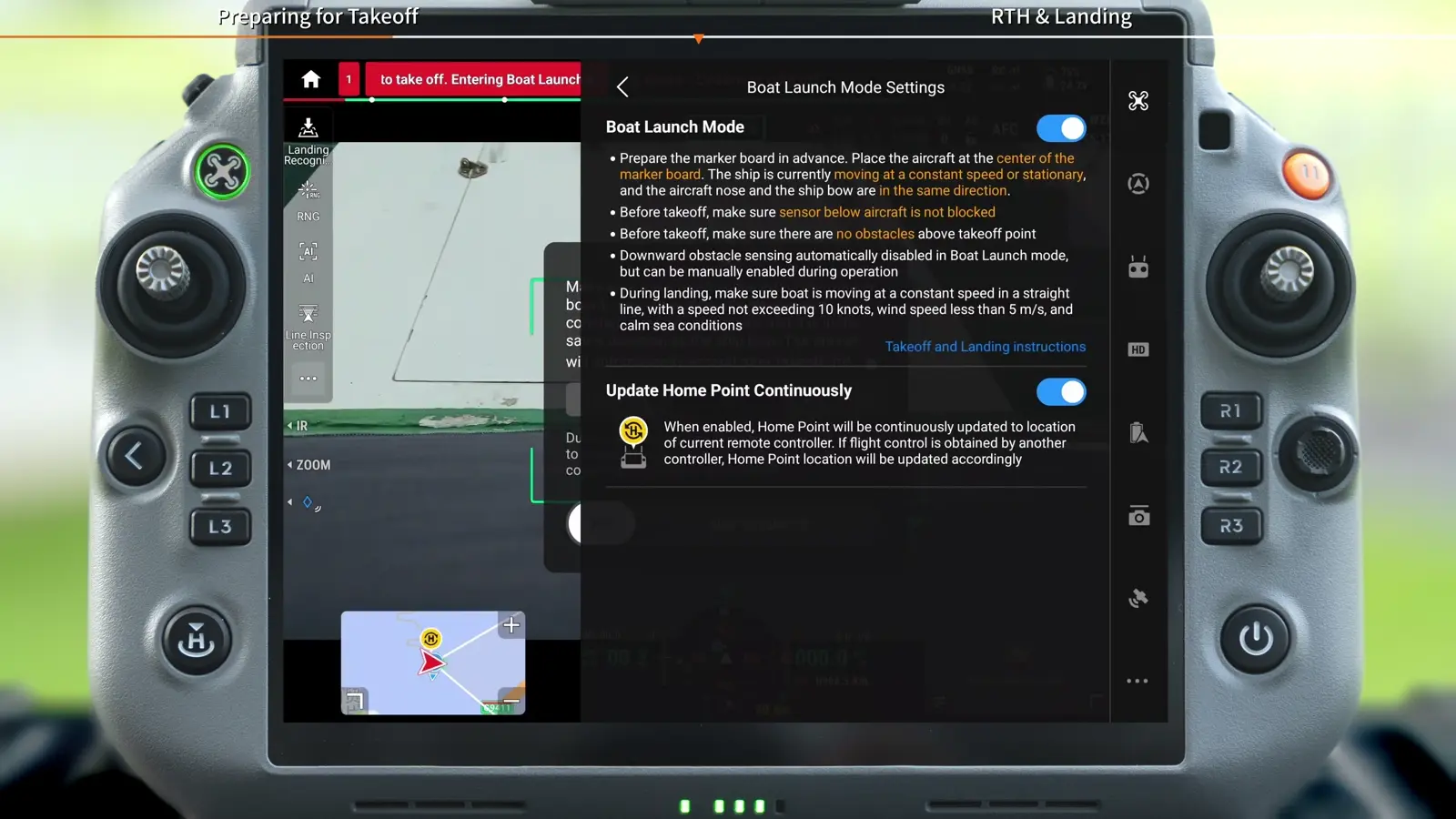
Enable Boat Launch Mode and the moving home point
Open the settings path before starting automatic takeoff. Update Home Point Continuously is an explicit part of the demonstrated procedure, allowing the return reference to follow the operation rather than remaining at the original departure location.
The settings screen explains that continuous home-point updates use the current controller location. Downward obstacle sensing is automatically disabled in Boat Launch Mode and can be manually enabled during operation.
- Open Settings at the upper right, then Flight Settings.
- Enter Boat Launch Mode Settings and enable Boat Launch Mode.
- Confirm Update Home Point Continuously is enabled.
- Wait for aircraft positioning to converge.
Set the initial climb and launch
The takeoff pop-up lets you choose the altitude the aircraft automatically climbs to after launch. Select that altitude with the deck surroundings and planned initial position in mind. When it reaches the preset altitude, the aircraft hovers and switches to manual control.
- Set the automatic takeoff altitude in the pop-up.
- Slide right to initiate automatic takeoff.
- Observe the climb to the preset altitude.
- Continue with manual control after the aircraft enters its hover.
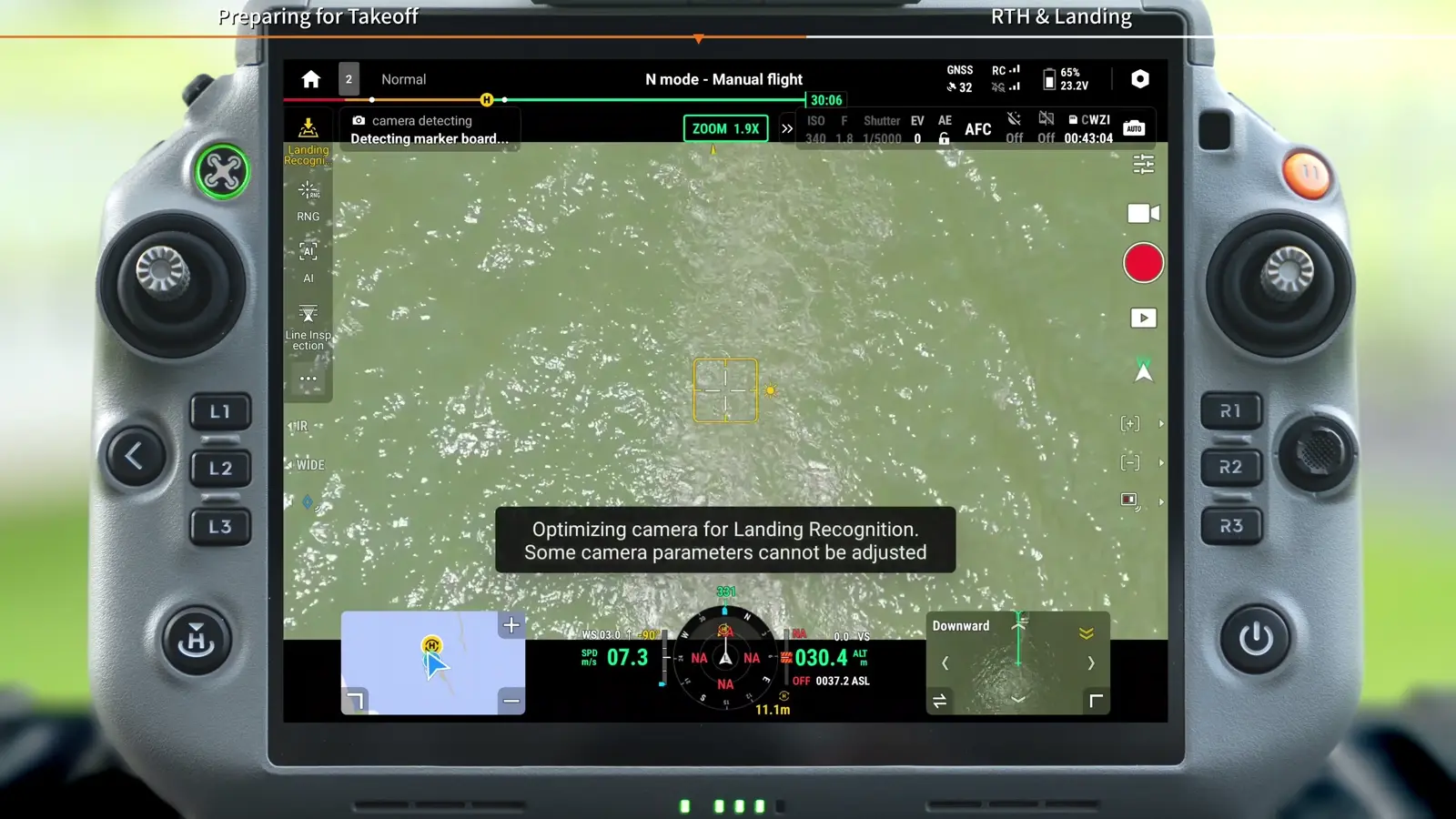
Return near the vessel and acquire the marker
Press and hold RTH after the operation. When the aircraft returns near the vessel, tap Landing Recognition. Once it recognizes the marker, the aircraft follows the vessel's movement. Press C1 when prompted to begin automatic landing.
The video also shows a manual approach to the marker: fly above it, then start Landing Recognition. In that sequence the camera points straight down and switches to the zoom view. An electronic marker icon confirms successful recognition.
Enabling Landing Recognition automatically disables all obstacle sensing. The pilot and vessel crew therefore maintain the aircraft’s clearance around the deck throughout recognition and descent.
- Return near the vessel using RTH or the demonstrated manual approach.
- Tap Landing Recognition and confirm marker acquisition.
- Press C1 as prompted to start auto landing.
Monitor automatic landing and a repeat attempt
Automatic landing controls altitude and horizontal position toward the marker. If it fails, the aircraft ascends automatically. The demonstrated recovery is to take manual control and repeat the marker-recognition and landing steps.
Keep the pilot and vessel operator coordinated through touchdown. A recognized marker and a return near the vessel are intermediate states; the landing procedure finishes when the aircraft has actually landed and the motors have stopped.
- Observe the automatic descent and marker tracking.
- Press C2 to cancel automatic landing at any time when a new approach is needed.
- If the landing fails and the aircraft ascends, take manual control.
- Reposition and repeat Landing Recognition and the C1 landing sequence.
Understand the emergency forced-landing segment
The final segment is an emergency procedure, separate from normal automatic landing. DJI first brings the vessel to a complete stop, then manually lowers the aircraft to within 0.5 m of the landing marker. Pressing Record and Shutter together stops the propellers for the demonstrated forced landing.
This button combination stops propulsion. Keep its emergency purpose distinct from the normal C1 auto-landing workflow in the crew briefing. Review the full video segment and the aircraft manual together as part of preparing the vessel procedure.
Your session checklist
Use these points to review the workflow with your crew.
- Marker positioned on stern deck
- Aircraft nose and vessel heading aligned
- Boat Launch Mode and continuous home-point updates enabled
- Positioning converged; initial altitude selected
- Landing Recognition and C1 sequence understood
- Normal landing and emergency motor-stop procedures clearly distinguished
Questions & answers
Where is Boat Launch Mode in DJI Pilot 2?
Open Settings → Flight Settings → Boat Launch Mode Settings, then enable Boat Launch Mode and confirm Update Home Point Continuously is enabled.
Does pressing RTH complete the deck landing?
RTH returns the aircraft near the vessel. The tutorial then uses Landing Recognition to acquire the marker and C1 to begin automatic landing.
What happens if automatic deck landing fails?
The tutorial shows the aircraft ascending automatically. The pilot then takes manual control and repeats the positioning, recognition and landing steps.
How do I cancel automatic deck landing?
Press C2 on the controller during automatic landing. The on-screen instructions identify C2 as the cancel control; C1 starts auto landing after successful marker recognition.
Video transcript
Read the complete transcript
Welcome to our tutorial video for DJI Matrice 5T
where we will introduce the Boat Launch feature of the DJI Matrice 5T aircraft
Before takeoff
lay a landing marker on the stern deck
Place the aircraft at the center of the landing marker with its nose facing the vessel's direction of travel
then power on the aircraft and the remote controller
Wait for the aircraft heading to align with the vessel heading
If they do not align for a long time
align them manually by holding the aircraft and moving it back and forth along the heading
Tap Settings in the upper right corner > Flight Settings
Boat Launch Mode Settings
and enable Boat Launch Mode
Make sure "Update Home Point Continuously" is enabled
and wait for the aircraft positioning to converge
In the pop-up window
you can set the altitude to which the aircraft automatically ascends after auto takeoff
Slide to the right to make the aircraft take off automatically and ascend to the preset altitude
When the aircraft reaches the preset altitude
it will automatically hover and switch to manual control
After the operation is complete
press and hold the RTH button to return to home
When the aircraft returns near the vessel
tap "Landing Recognition"
Once the marker is recognized
the aircraft will follow the vessel's movement
Press C1 as prompted to start auto landing
Manually fly the aircraft above the marker and tap "Landing Recognition"
The camera automatically points straight down and switches to the zoom view
Once recognition is successful
an electronic marker icon appears
Press the C1 button on the remote controller
The aircraft will enter auto landing mode and automatically control its altitude and horizontal position to fly toward the landing marker
If auto landing fails
the aircraft will ascend automatically
Manually control the aircraft and repeat the steps above
In an emergency
wait until the vessel has come to a complete stop
then manually lower the aircraft to within 0.5 m of the landing marker
Press the Record button and the Shutter button on the remote controller at the same time to stop the propellers and perform a forced landing
avoiding further damage
Thank you for watching