
Watch the complete tutorial
Choose the recognition algorithms
The tutorial introduces multiple video streams with two algorithms running together, colour-based visual search for people and vehicles, and more than twenty detectable target types across the supported recognition functions. Start with a clearly defined subject and a scene where you can compare detections with what is visibly present.
- In the DJI Pilot 2 camera view, tap AI Recognition.
- Select Algorithm Settings.
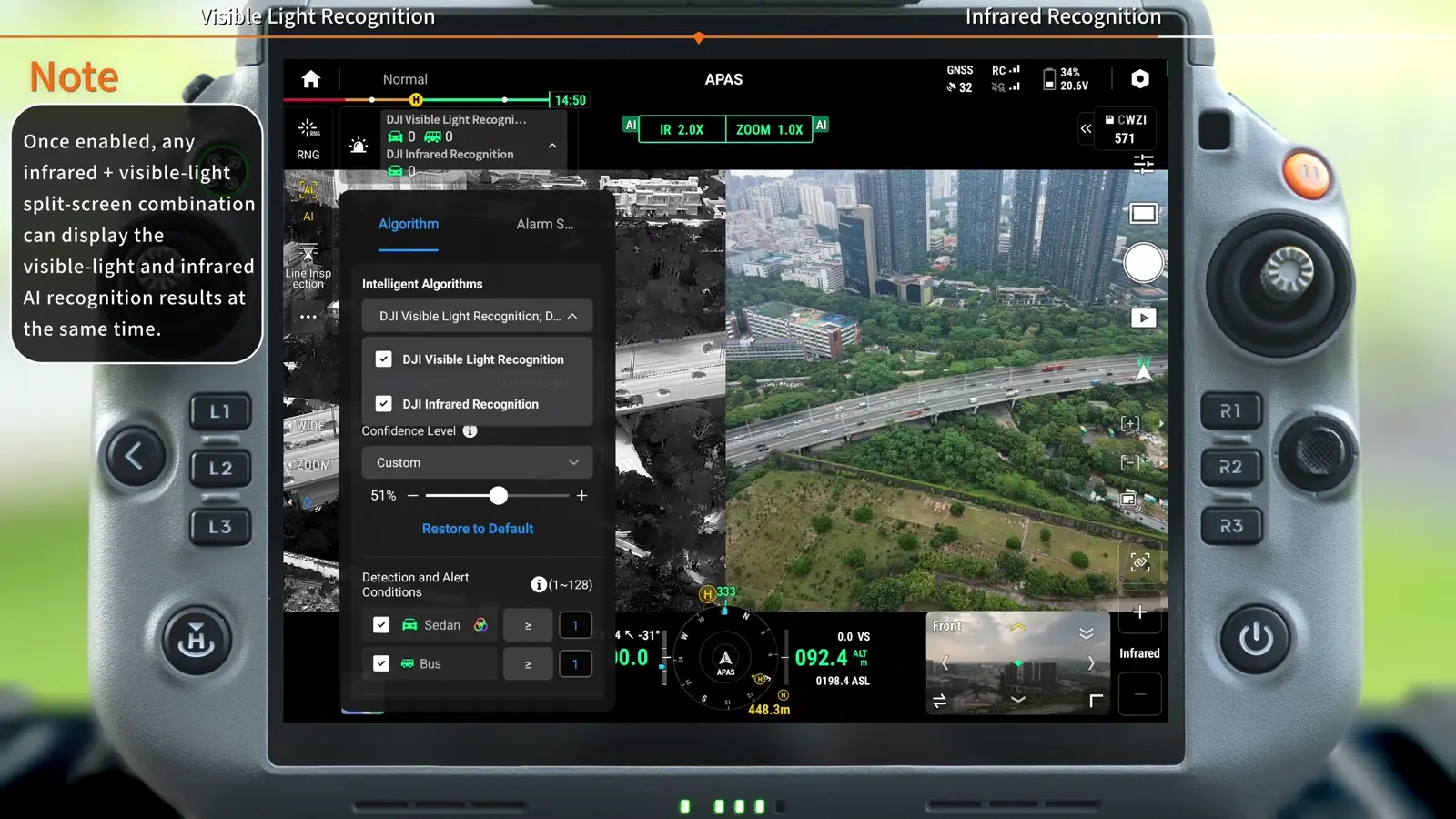
- Under Intelligent Algorithms, select DJI Visible Light Recognition and DJI Infrared Recognition as required.
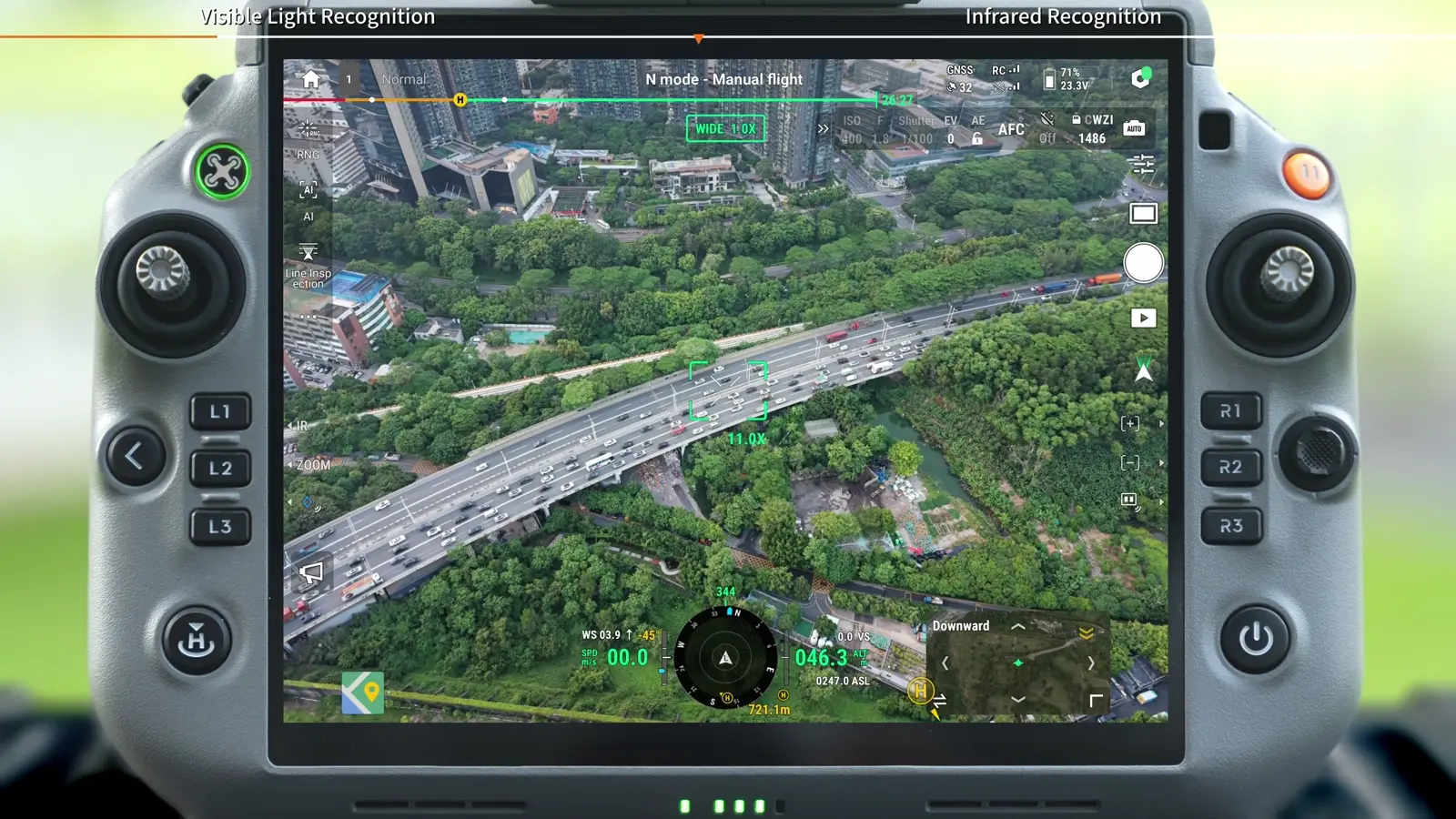
Set visible-light targets and confidence
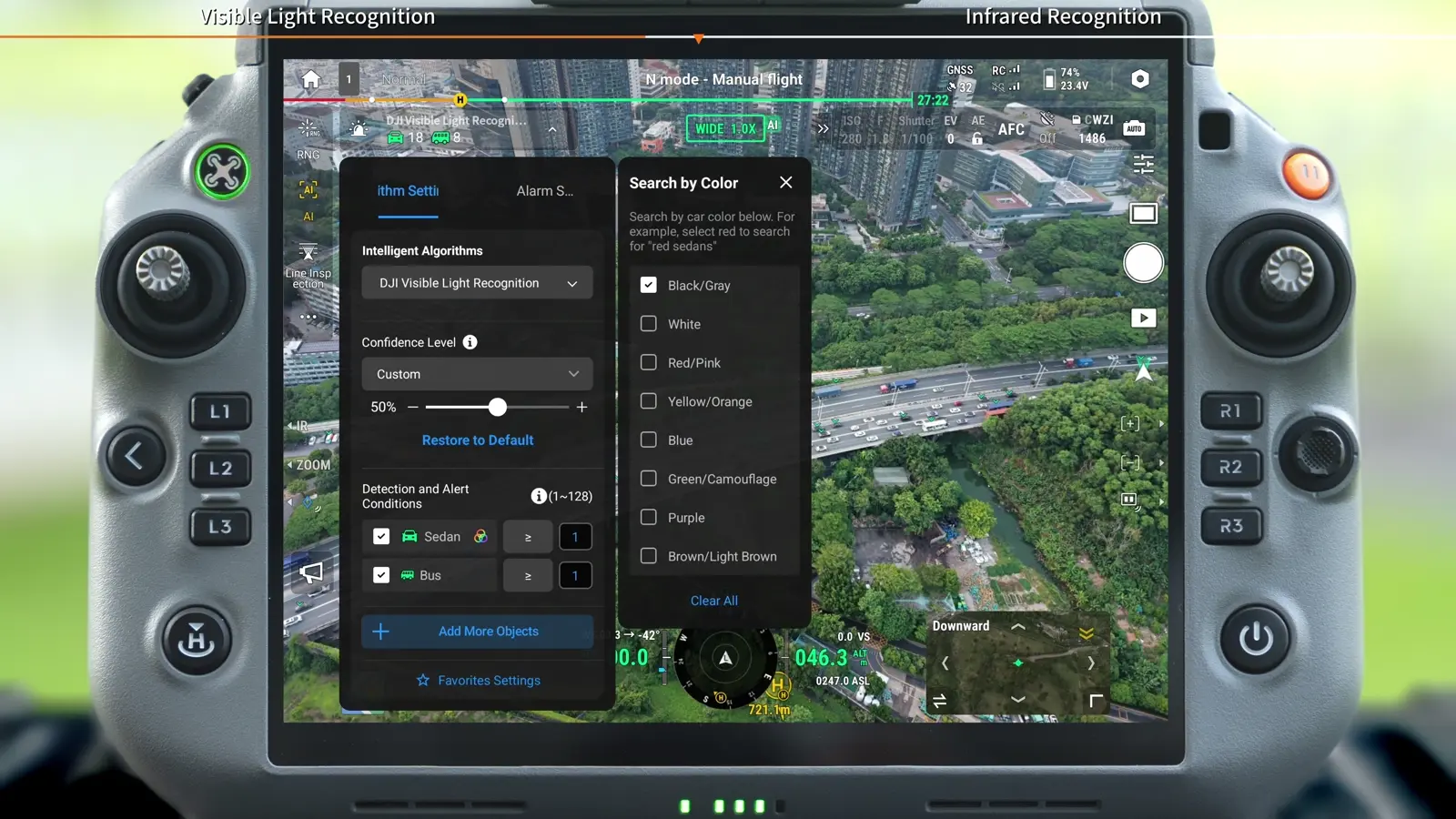
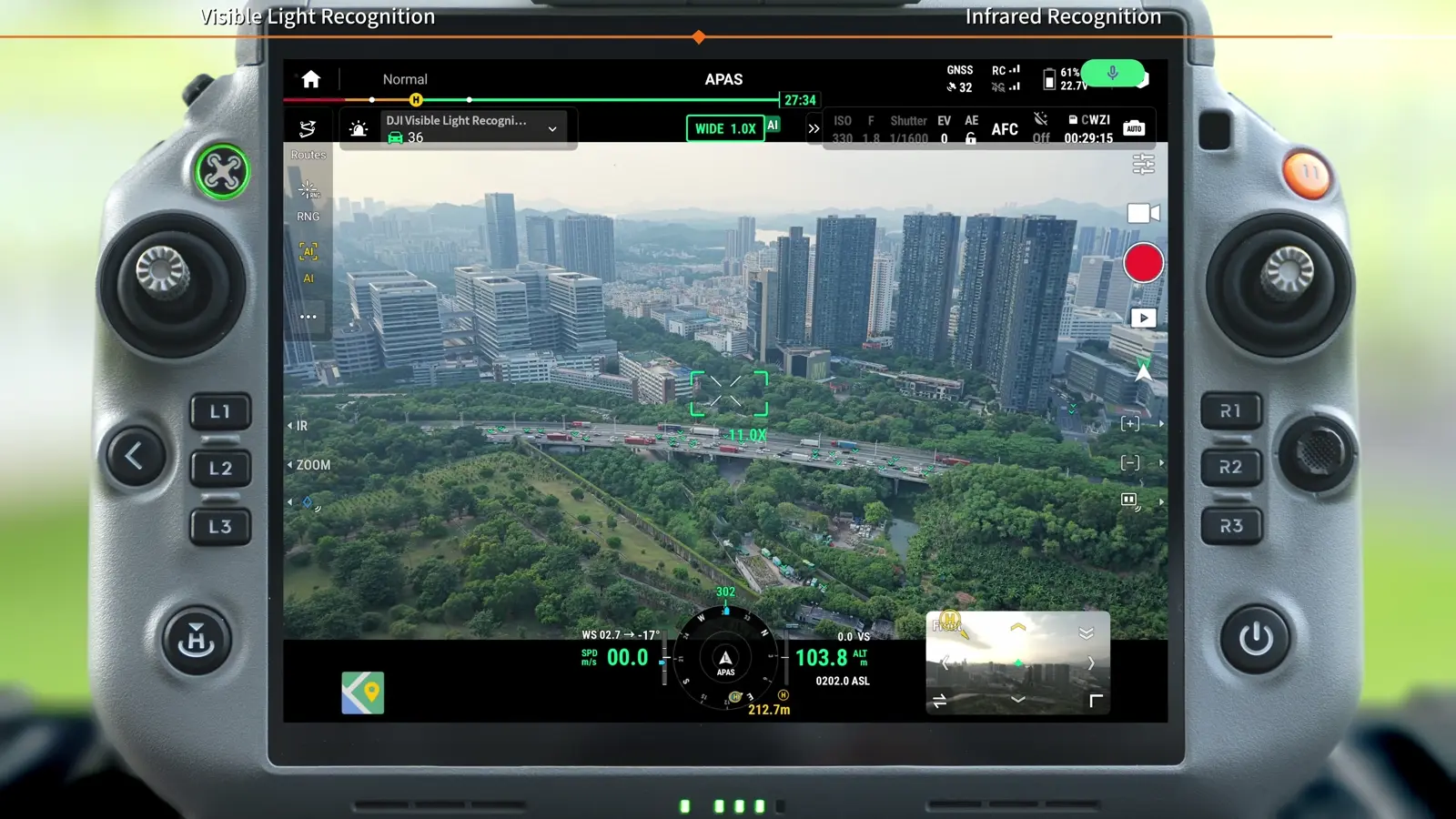
Visible-light settings include confidence, recognition conditions and alert conditions. The categories named in the tutorial are people, safety, vehicles, vessels, environmental monitoring and animals. These categories organize the task; choose the conditions relevant to the operation rather than treating every detection as equally useful.
The colour icon selects the target colour for a more specific visual search. It is a search condition for the subject, not simply the colour of the box drawn on screen.
- Adjust confidence and the recognition and alert conditions.
- Select the relevant target category.
- Tap the colour icon when the target's colour is useful to the search.
- Compare the marked subjects with known examples in the scene.
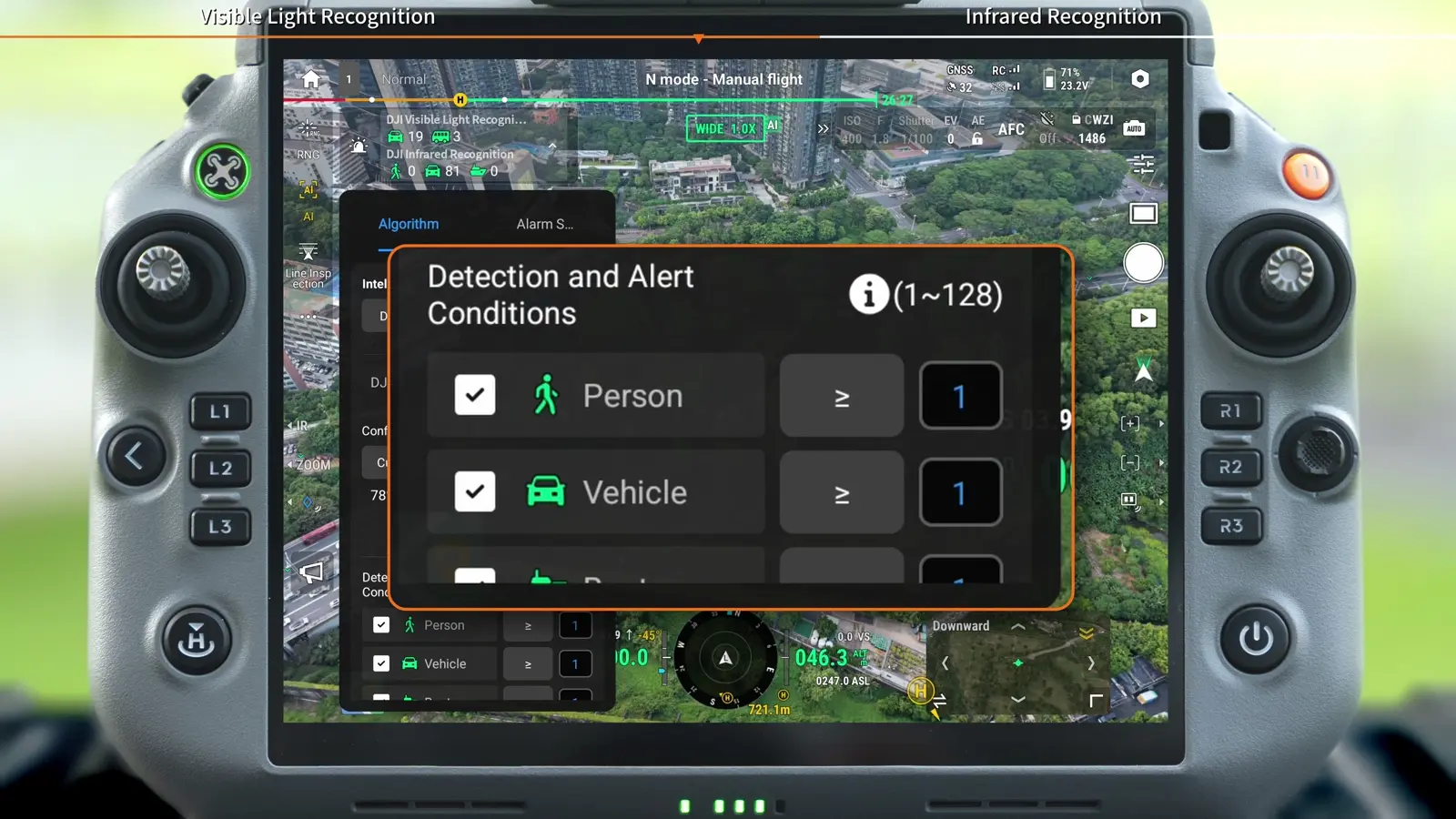
Configure infrared recognition
The infrared workflow automatically detects and marks targets in the thermal image. The three target types named here are people, vehicles and vessels. Set its confidence and conditions independently so the thermal view contributes useful observations alongside visible recognition.
For practice, use a scene with known subjects and compare the two views. Record which target category and conditions were selected so another operator can reproduce the exercise.
- Open the infrared recognition settings.
- Choose people, vehicles or vessels as appropriate.
- Set confidence, recognition conditions and alert conditions.
Set notification behaviour and review reports
Detection and notification are separate decisions. Alarm Settings controls whether and how a detection produces an alert. Choose an interval and notification method that the operator can act on while continuing the flight task.
- Tap Alarm Settings.
- Under Warning Algorithms, enable the alert switch.
- Configure the alert interval and notification method.
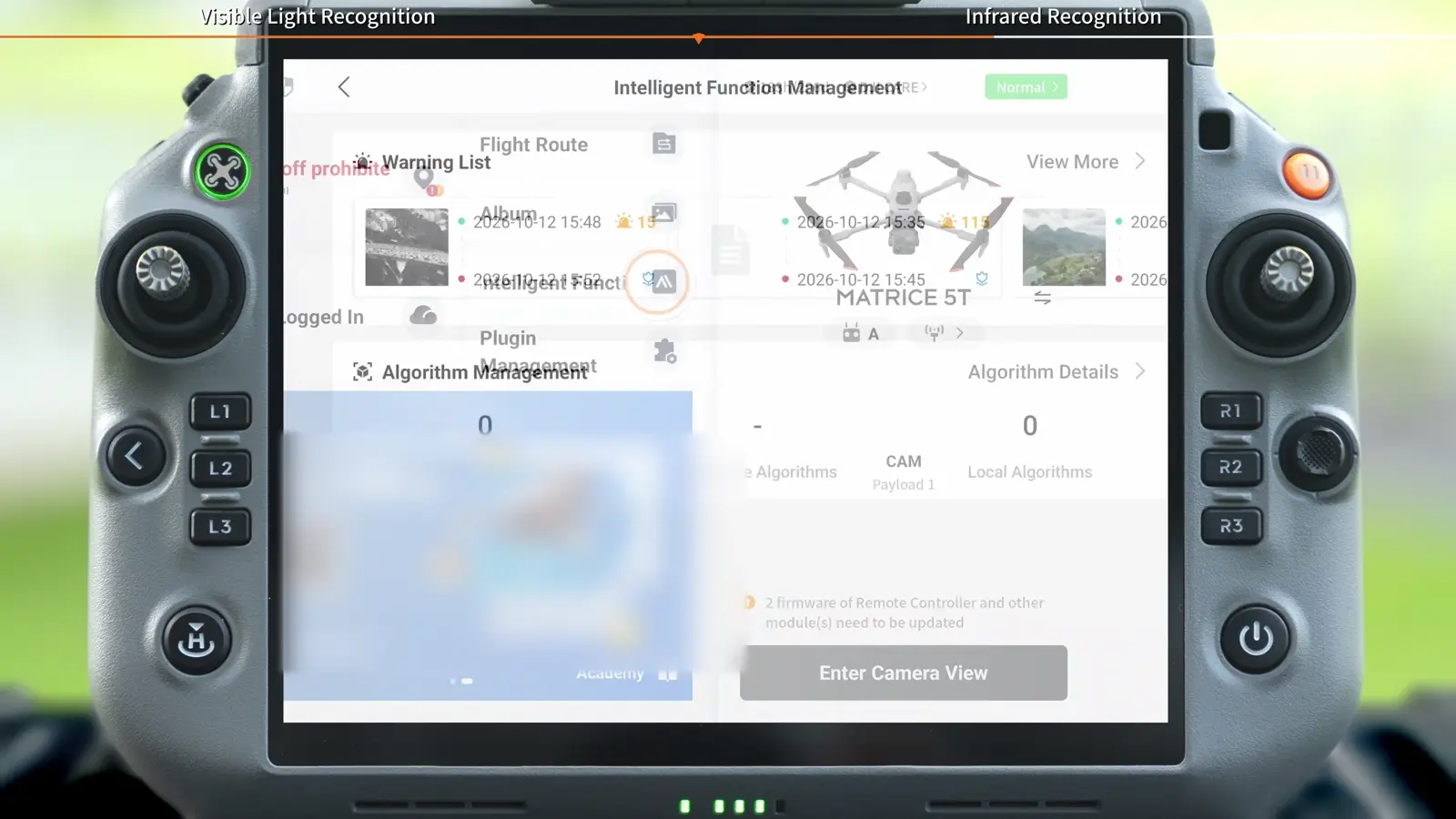
- From the controller homepage, open Intelligent Function Management to review alert reports.
Display visible and infrared recognition together
Use the camera layout and algorithm selection together. The demonstrated pairing is Infrared + Zoom, selected with a press-and-hold of R3. Enabling both recognition algorithms then presents two algorithms and two video streams on one screen.
The on-screen note extends this beyond the demonstrated Infrared + Zoom preset: once both algorithms are enabled, any infrared-plus-visible split-screen combination can display their results together.
- Hold R3 and select Infrared + Zoom.
- Return to Algorithm Settings.
- Select both Visible Light Recognition and Infrared Recognition.
- Compare the marked subjects and use the visible scene to interpret each observation.
Add a third-party algorithm to the workflow
The video demonstrates Algorithm Details as the entry point for importing third-party algorithms. Once available under Intelligent Algorithms, a third-party algorithm can be enabled and its confidence, recognition conditions and alert conditions adjusted.
SkyFlow's suggested acceptance exercise is simple: define a known scene, record the selected settings, run the recognition task and compare the output with the expected subjects. This creates a useful handover record for the operator who will use the algorithm next.
- Tap Algorithm Details to follow the import workflow.
- Enable the imported algorithm under Intelligent Algorithms.
- Adjust its supported conditions and review the result in a controlled scene.
Your session checklist
Use these points to review the workflow with your crew.
- Target category defined
- Visible and infrared algorithm choices recorded
- Confidence and recognition conditions reviewed
- Target-colour search configured where useful
- Alert interval and notification method set
- Alert reports located in Intelligent Function Management
Questions & answers
Does the colour icon change the detection-box colour?
In this tutorial, the colour icon selects the target colour to refine visual recognition. It is used for colour-based subject search.
Which infrared target types are shown?
The tutorial names people, vehicles and vessels for infrared recognition.
Where are AI alert reports stored in the interface?
Open Intelligent Function Management on the controller homepage to view the alert reports.
Video transcript
Read the complete transcript
Welcome to our tutorial video for DJI Matrice 5T
where we will introduce the built-in AI features of the aircraft
DJI Matrice 5T supports multiple video streams combined with two algorithms running at the same time
as well as color-based visual search for people and vehicles
It can automatically detect over 20 target types
In the camera view of DJI Pilot 2
tap "AI Recognition"
Select "Algorithm Settings"
Under "Intelligent Algorithms"
you can select both "DJI Visible Light Recognition" and "DJI Infrared Recognition"
You can adjust the confidence level
as well as the recognition and alert conditions
Alert targets include people
safety
vehicles
vessels
environmental monitoring
and animals
Tap the color icon to select the color of the target for more precise recognition
Targets in the thermal image can be automatically detected and marked
You can adjust the confidence level
as well as the recognition and alert conditions
with three target types available: people, vehicles, and vessels
Tap "Alarm Settings"
Under "Warning Algorithms"
you can turn on the alert switch and configure the alert interval and alert notification method
On the homepage of the remote controller
tap "Intelligent Function Management" to view the alert reports
Press and hold the R3 button on the remote controller and select "Infrared + Zoom"
In Algorithm Settings
select both Visible Light Recognition and Infrared Recognition
to view two algorithms and two video streams on one screen
Tap "Algorithm Details" to import third-party algorithms
Under Intelligent Algorithms
you can also enable third-party algorithms at the same time
and adjust their confidence level and recognition and alert conditions
Thank you for watching