
Watch the complete tutorial
Choose an update route
| Route | Preparation | Start here |
|---|---|---|
| Online | Internet on the controller; both batteries above 25% | Update prompt → Update All Devices |
| Offline | Package at the root of internal storage or microSD | HMS → Firmware Update → Offline Update |
| Computer | DJI Assistant 2 (Enterprise Series); data cable | Select device → Firmware Update → Upgrade |
Choose the update method and prepare the equipment
Use the online method when the controller has internet access. Prepare an offline package ahead of a disconnected field deployment, or use DJI Assistant 2 (Enterprise Series) when updating a device from a computer. Identify the device and package before beginning so the process remains easy to track across an equipment fleet.
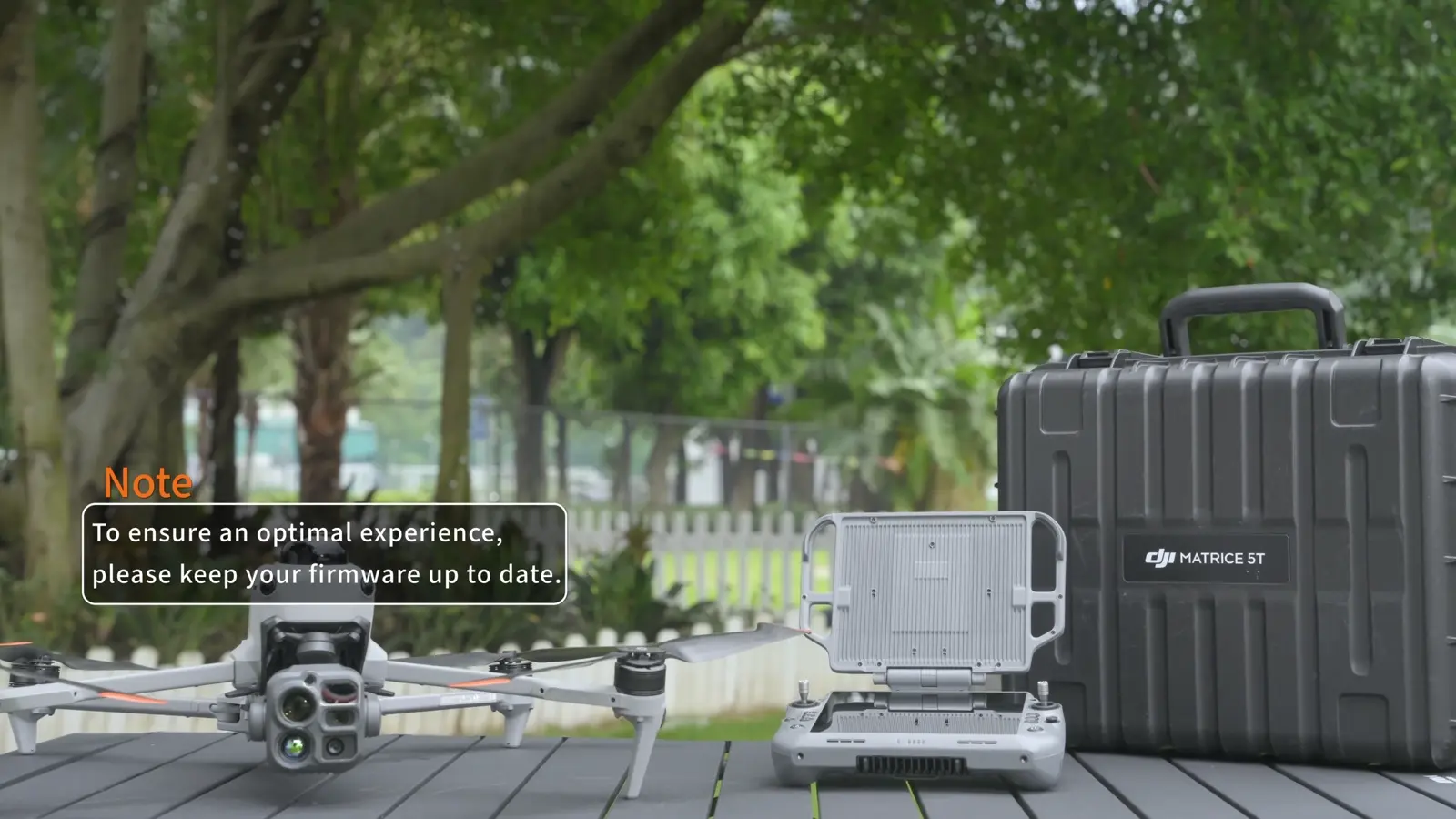
- Power on the aircraft and controller.
- For the demonstrated online procedure, confirm both batteries are above 25%.
- Connect the controller to the internet for the online route.
Run an online update in Pilot 2
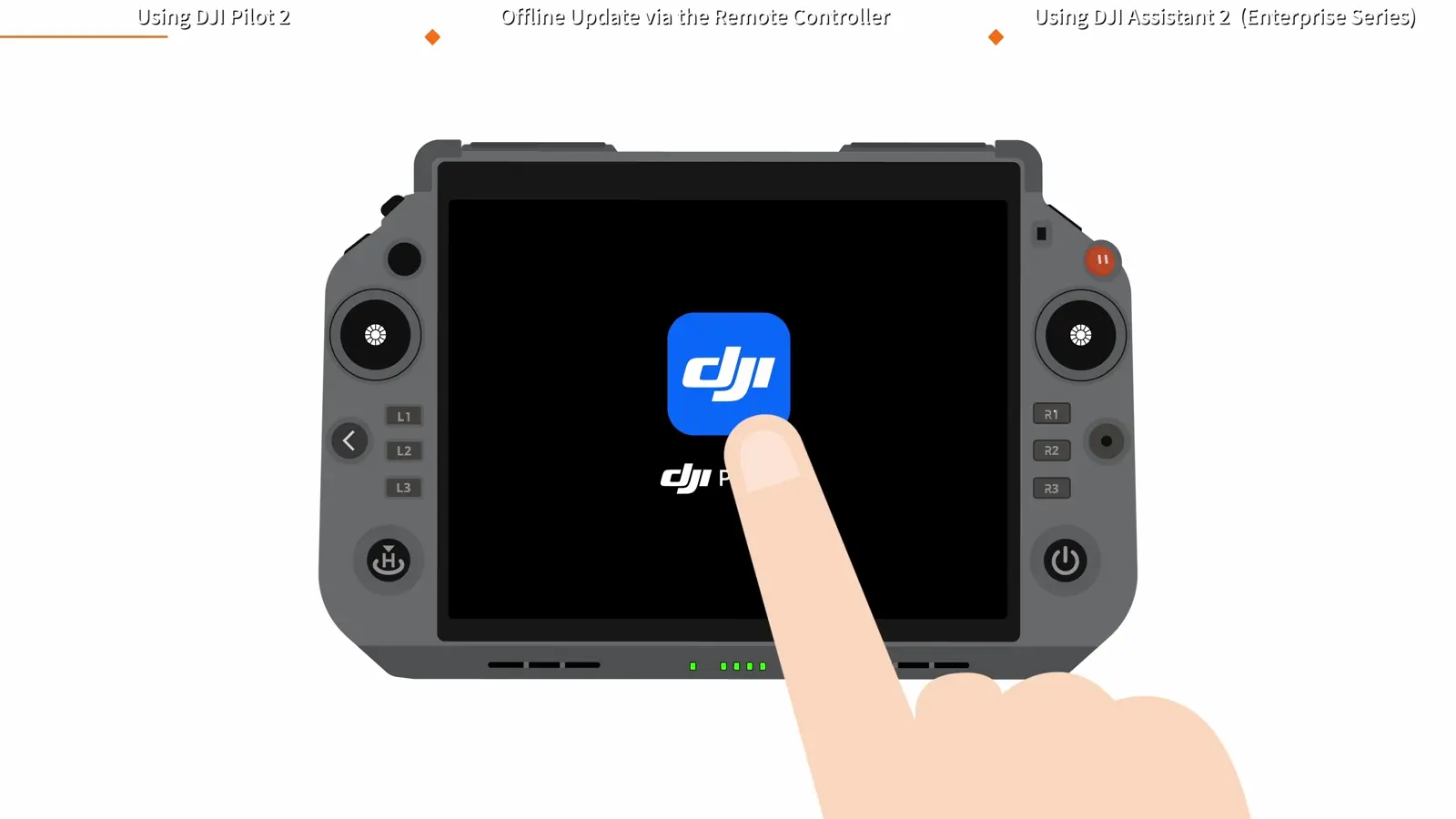
The update notification opens the update page. Update All Devices starts the combined workflow. Keep the devices powered and DJI Pilot 2 open while the update runs; the aircraft can restart automatically during the process.
- Tap the firmware-update prompt.
- Select Update All Devices.
- Allow the process and any automatic restart to complete.
- Confirm that the app reports Updated successfully.
Prepare an offline firmware package
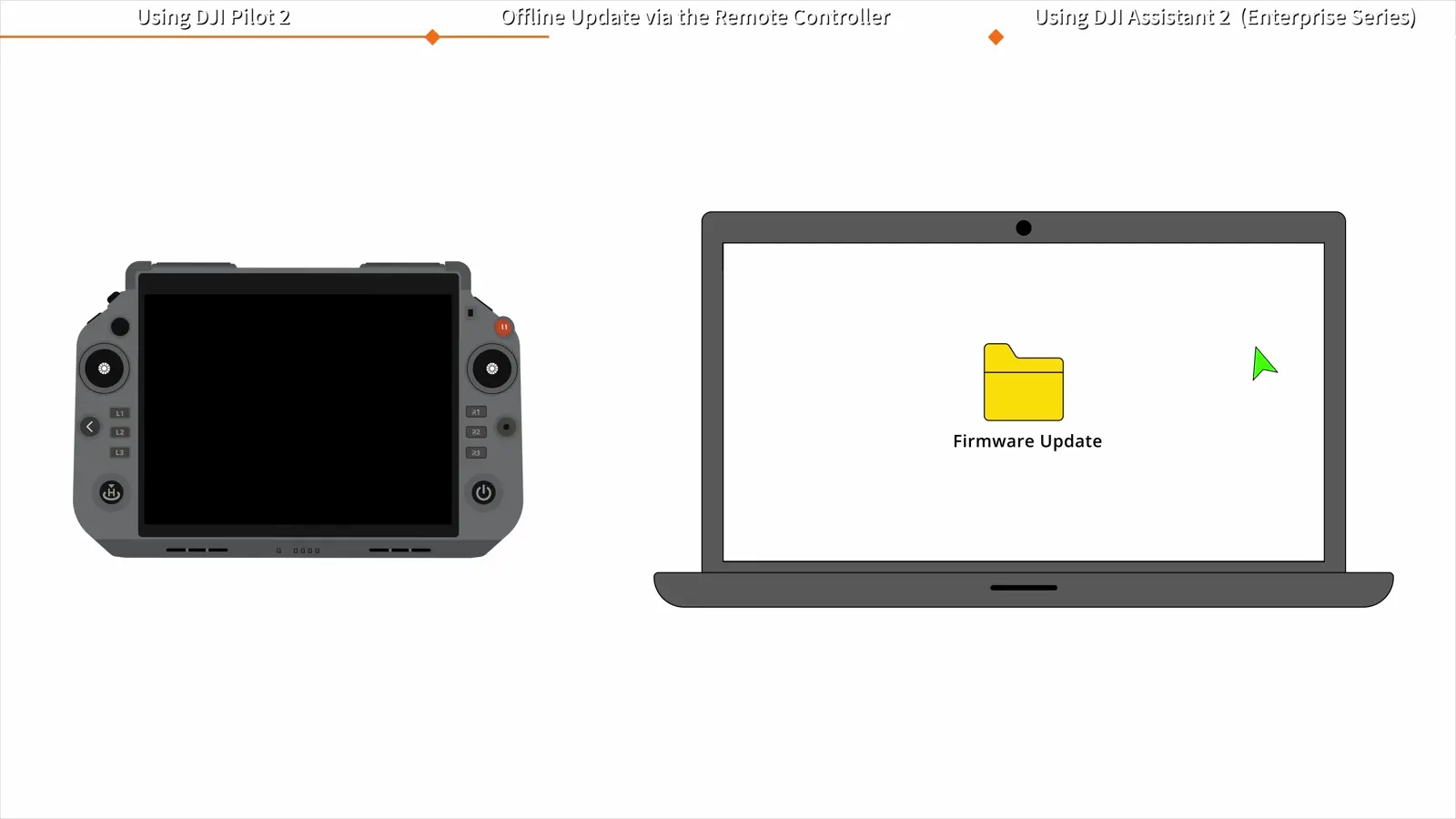
The offline route begins on the official DJI product-download page. Download the Matrice 5T offline firmware package, then copy it to the root directory of either the controller's internal storage or an external microSD card. The root directory is the top level of that storage location, which helps avoid a package being hidden inside an extra folder.
Keep a record of the downloaded version with the aircraft's maintenance notes. For a team deployment, prepare the package before leaving a reliable connection and retain enough time for the installation and post-update check.
- Download the current offline package from DJI's Matrice 5T downloads.
- Copy it to the root of controller storage or the microSD card.
- Power on the controller and aircraft.
Install the offline update
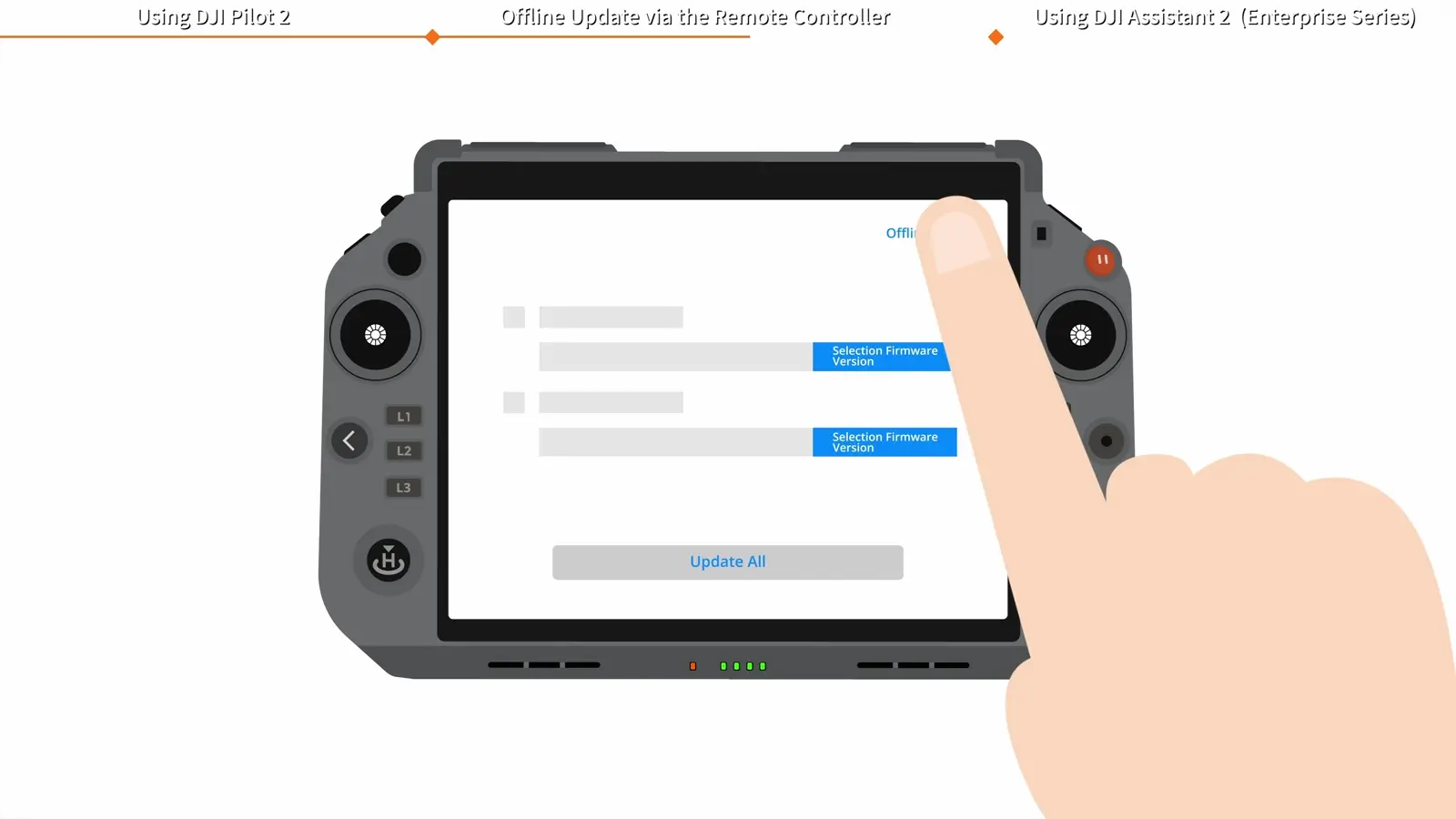
The menu path starts from HMS on the app homepage. Select the prepared package and keep its storage connected until the installation completes. The aircraft restarts automatically after completion.
- Open HMS → Firmware Update → Offline Update.
- Select the firmware package.
- Tap Update All.
- Keep the aircraft powered and the microSD card inserted through completion and restart.
Update through DJI Assistant 2
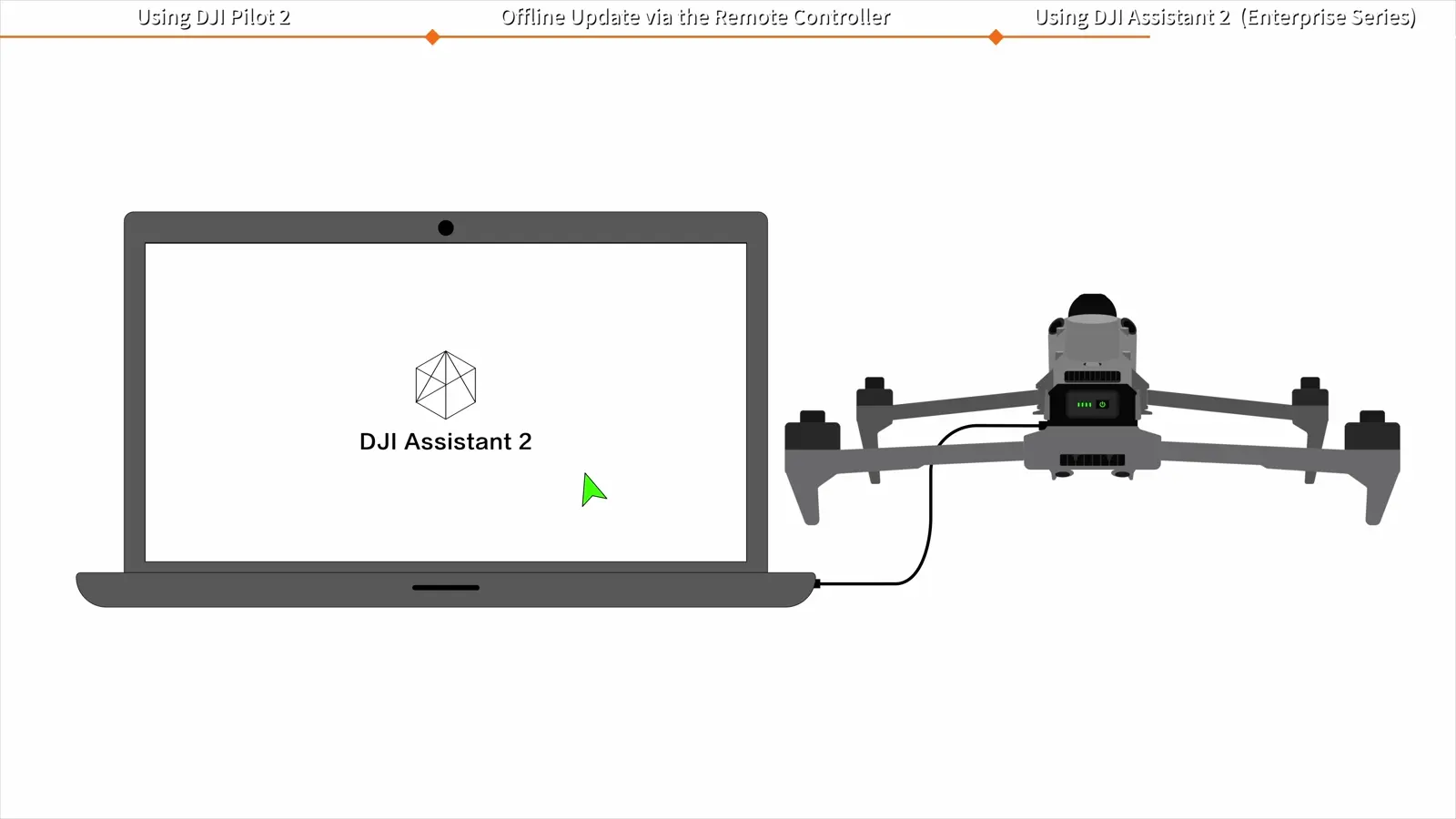
Use the Enterprise Series edition of DJI Assistant 2 from the product-download page. The video demonstrates connecting either the aircraft or controller by cable, selecting that device in the application, and choosing a firmware version from its list.
- Connect the device to the computer and power it on.
- Open DJI Assistant 2 (Enterprise Series) and select the connected device.
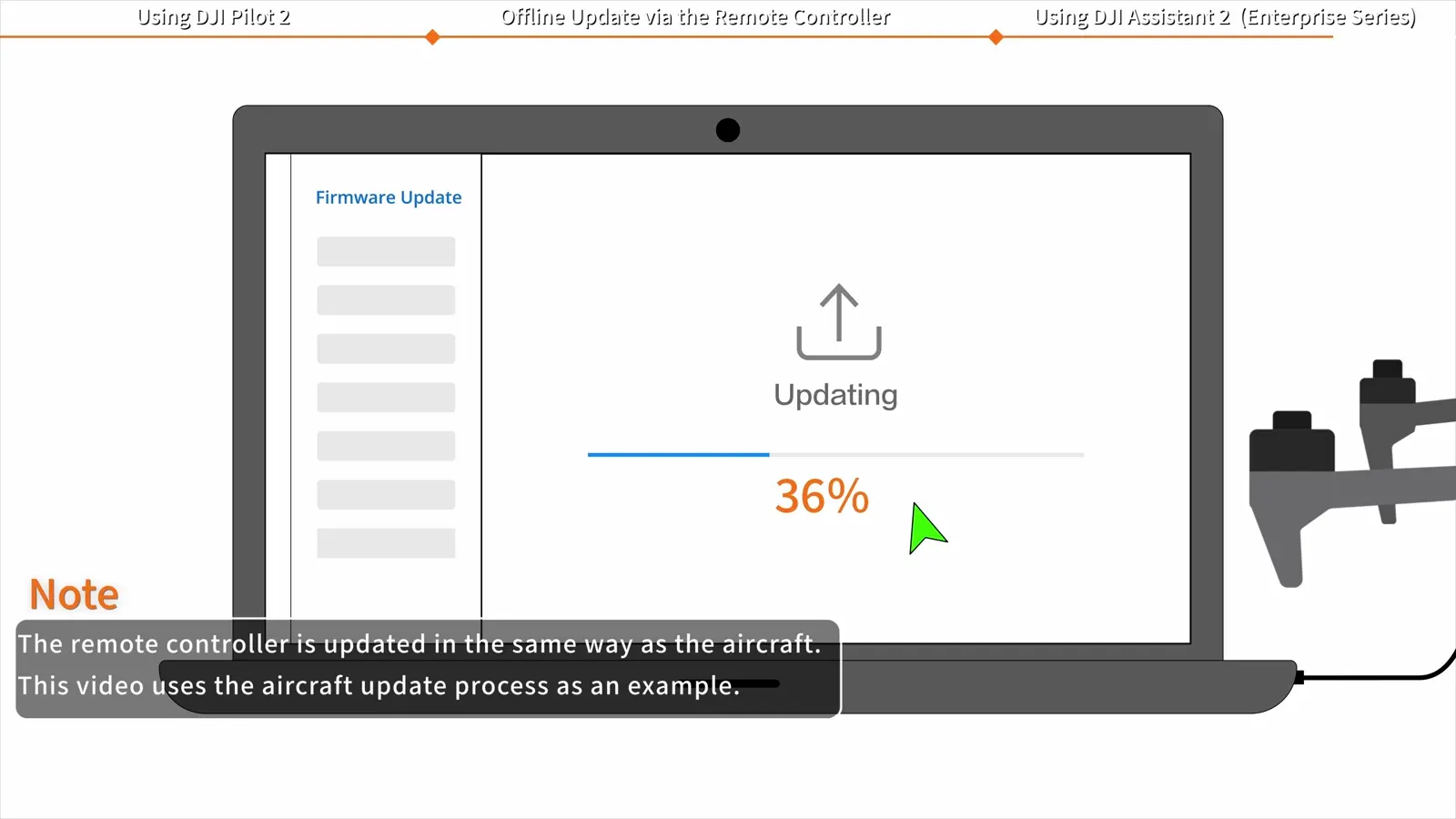
- Click Firmware Update on the left and wait for the list to refresh.
- Select the latest version and click Upgrade.
- Keep the device powered, the application open and the data cable connected until the automatic restart completes.
Record the result before the next flight
SkyFlow's suggested handover check is to record the update method, date and installed version, then reopen DJI Pilot 2 and review the equipment status. This turns a one-time update into a traceable maintenance action and makes it easier to compare aircraft sets later.
Include fitted accessories in the status review. Complete this work before the planned flight window so the operator has time to address any device prompt and review settings.
Your session checklist
Use these points to review the workflow with your crew.
- Correct Matrice 5T package or Enterprise Series application selected
- Online update battery levels above 25%
- Power and required connections maintained
- Completion message or automatic completion restart observed
- Installed version and date recorded
- Pilot 2 equipment status reviewed
Questions & answers
Where does the offline firmware file go?
Copy the package to the root directory of the controller’s internal storage or an external microSD card. In Pilot 2, open HMS → Firmware Update → Offline Update.
Which DJI Assistant 2 edition is used?
The tutorial specifies DJI Assistant 2 (Enterprise Series), available from the Matrice 5T product-download page.
Is an automatic restart part of updating?
Yes. DJI shows automatic restarts during or after the firmware-update process. Keep the equipment powered and let the update finish.
Video transcript
Read the complete transcript
Welcome to our tutorial video for DJI Matrice 5T
where we will show you how to update the firmware of the aircraft and remote controller
Power on the remote controller and the aircraft
Make sure the battery levels of both the aircraft and the remote controller are above 25%
and that the remote controller is connected to the internet
When a firmware update prompt appears in the App
tap the prompt to enter the update page
then tap "Update All Devices"
During the update process
do not power off the devices or exit the App
The firmware update is complete when the App displays "Updated successfully"
It is normal for the aircraft to restart automatically during the update process
Do not power off the aircraft
Download the latest offline firmware package from the product download page on the DJI official website
Copy the firmware package to the root directory of the remote controller's internal storage or an external microSD card
Power on the remote controller and the aircraft
On the App homepage
tap HMS > Firmware Update > Offline Update
select the update package
and tap "Update All"
The aircraft will start the firmware update automatically
Do not power off the aircraft or remove the microSD card before the update is complete
to avoid damage to the aircraft
The aircraft will restart automatically after the update is complete
Download DJI Assistant 2 (Enterprise Series) from the product download page on the DJI official website
Connect the aircraft or the remote controller to a computer with a cable
then power on the device
Open DJI Assistant 2
select the connected device
click "Firmware Update" on the left
and wait for the firmware list to refresh
Select the latest firmware version and click "Upgrade"
During the update process
do not power off the device
exit DJI Assistant 2
or disconnect the data cable
The device will restart automatically after the update is complete
Thank you for watching