
Watch the complete tutorial
Understand what an open plugin adds
The tutorial introduces MSDK interfaces for AR projection, boxes in the live view, map elements and UI layout. Combined with device-control interfaces, these let a plugin place task-specific information and actions inside the Pilot 2 workflow.
Begin with the operational result: the operator needs to identify an asset, draw an area, review a task or act on information. Define that result before choosing a plugin so the interface has a clear role during the flight.
Create an App Key for development
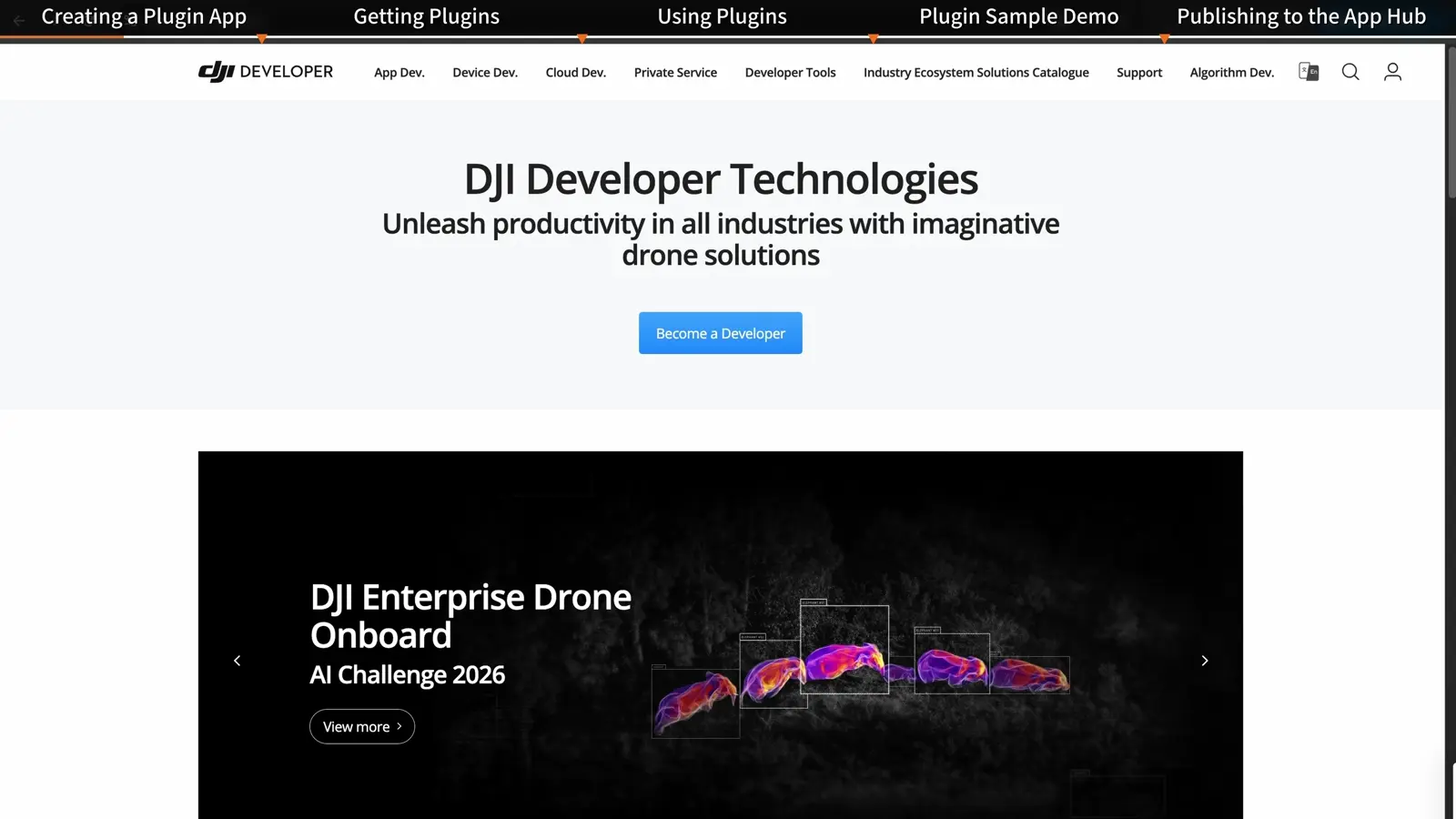
Developers start in the personal centre on the DJI Developer Platform. Create App requests the App Key, and an activation email completes the app activation. These are development steps; an operator installing an existing plugin follows the App Hub workflow below.
- Open the DJI Developer Platform and your personal centre.
- Click Create App to apply for an App Key.
- Send the activation email and activate the app through its email link.
- Review Developer Documentation and API Reference before building the integration.
Find and install a plugin from App Hub
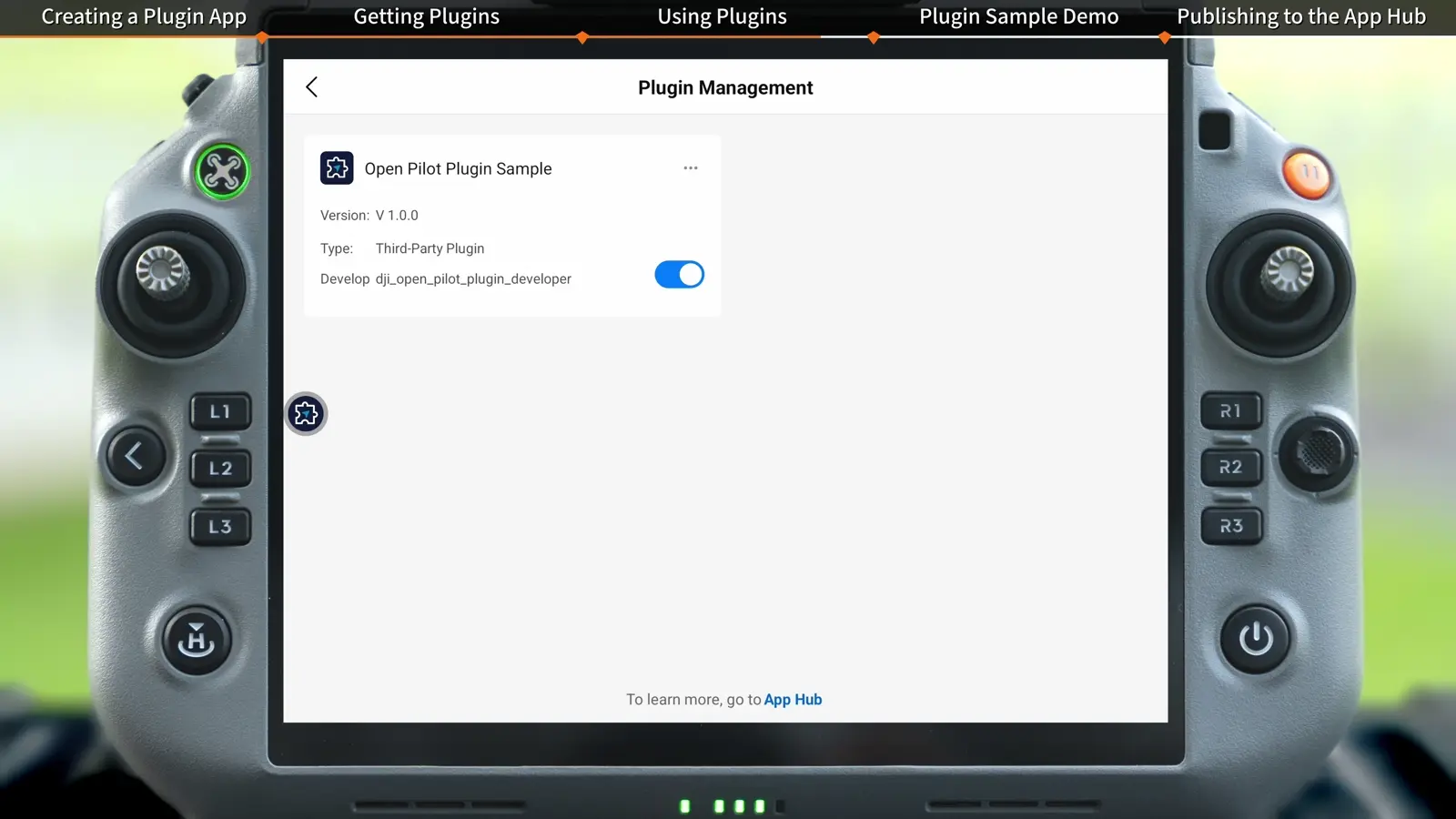
Plugin Management is the operator's entry point. Review the plugin details before installation so the team knows what task it supports and how it will be used.
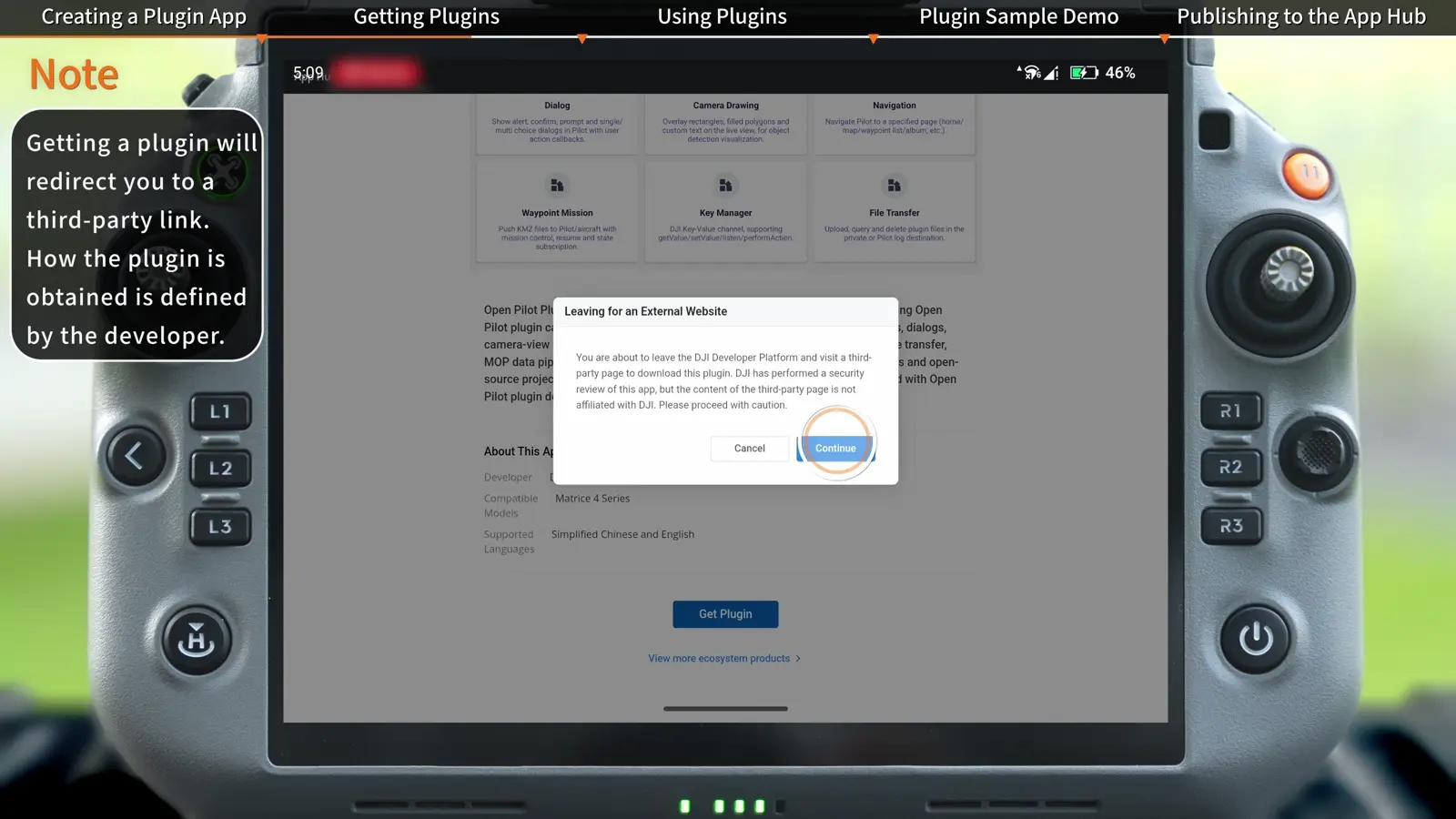
The on-screen notes also describe importing a plugin APK distributed by a provider. App Hub is the route demonstrated here, and Get Plugin may redirect to the developer’s download page. Follow the provider’s distribution instructions for the selected plugin.
- On the Pilot 2 homepage, tap Plugin Management.
- Tap Open App Hub and browse the plugin list.
- Open the required plugin's details.
- Tap Get Plugin and complete installation.
Enable the installed plugin
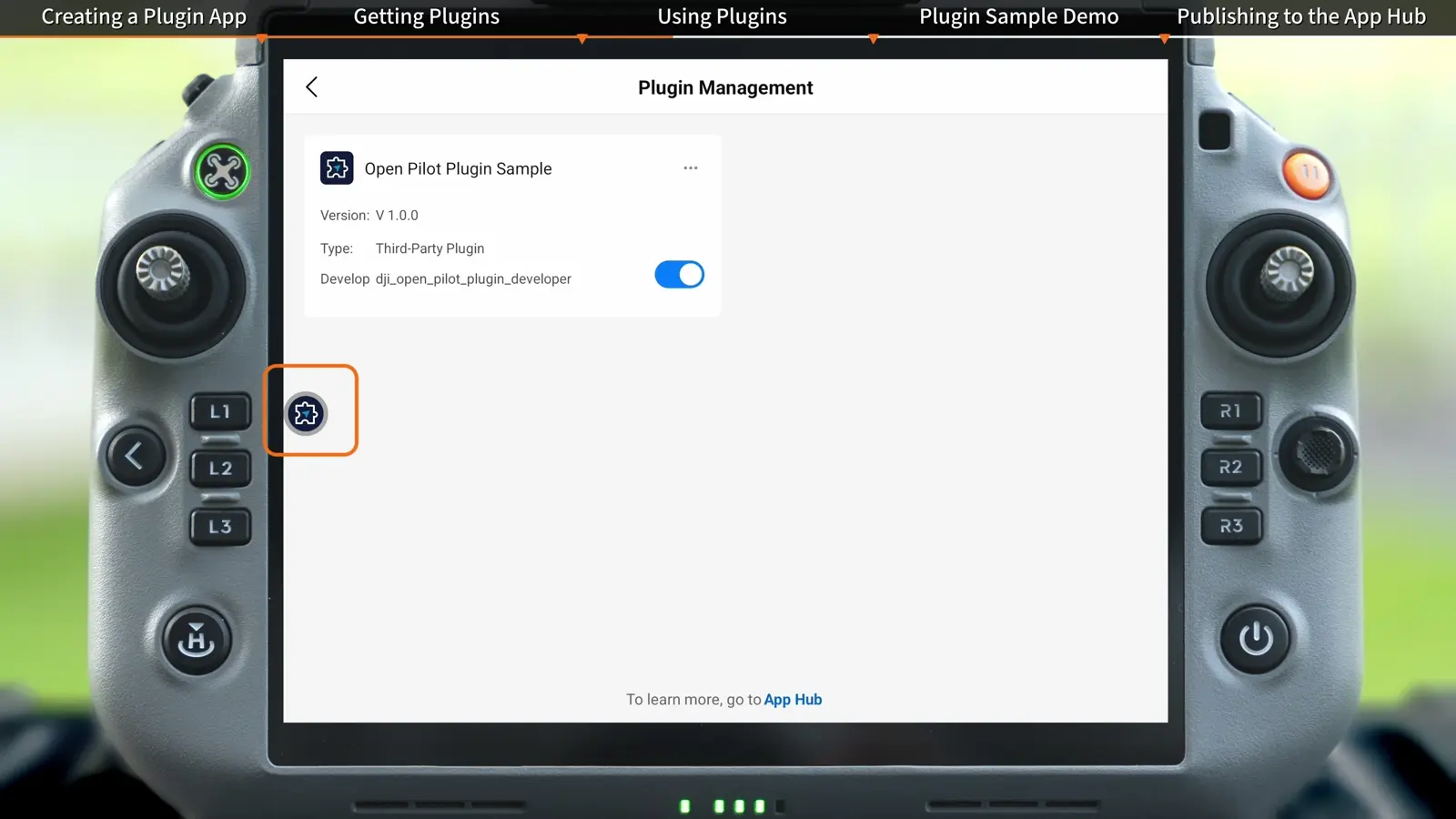
A newly installed plugin is disabled by default. Installation and enabling are separate steps, which explains why a successful download may not immediately produce a floating button in the flight interface.
First use also requires online registration of the installed plugin. Complete that registration before relying on it during a disconnected deployment.
- Return to Plugin Management after installation.
- Enable the plugin.
- Confirm that its floating button appears when it starts successfully.
Use the floating window inside Pilot 2
Tap the floating button to expand the plugin window. The plugin's UI can call its supported interface capabilities while the operator remains in Pilot 2. The tutorial also shows a jump button for opening the plugin app and a minimize control for returning the window to a floating button.
- Tap the floating button to open the plugin UI.
- Use its task controls within the window.
- Use the jump button to open the plugin app when needed.
- Minimize the window to restore the compact floating button.
- Disable or uninstall the plugin in Plugin Management when it is no longer needed.
Evaluate AR projections in the working view
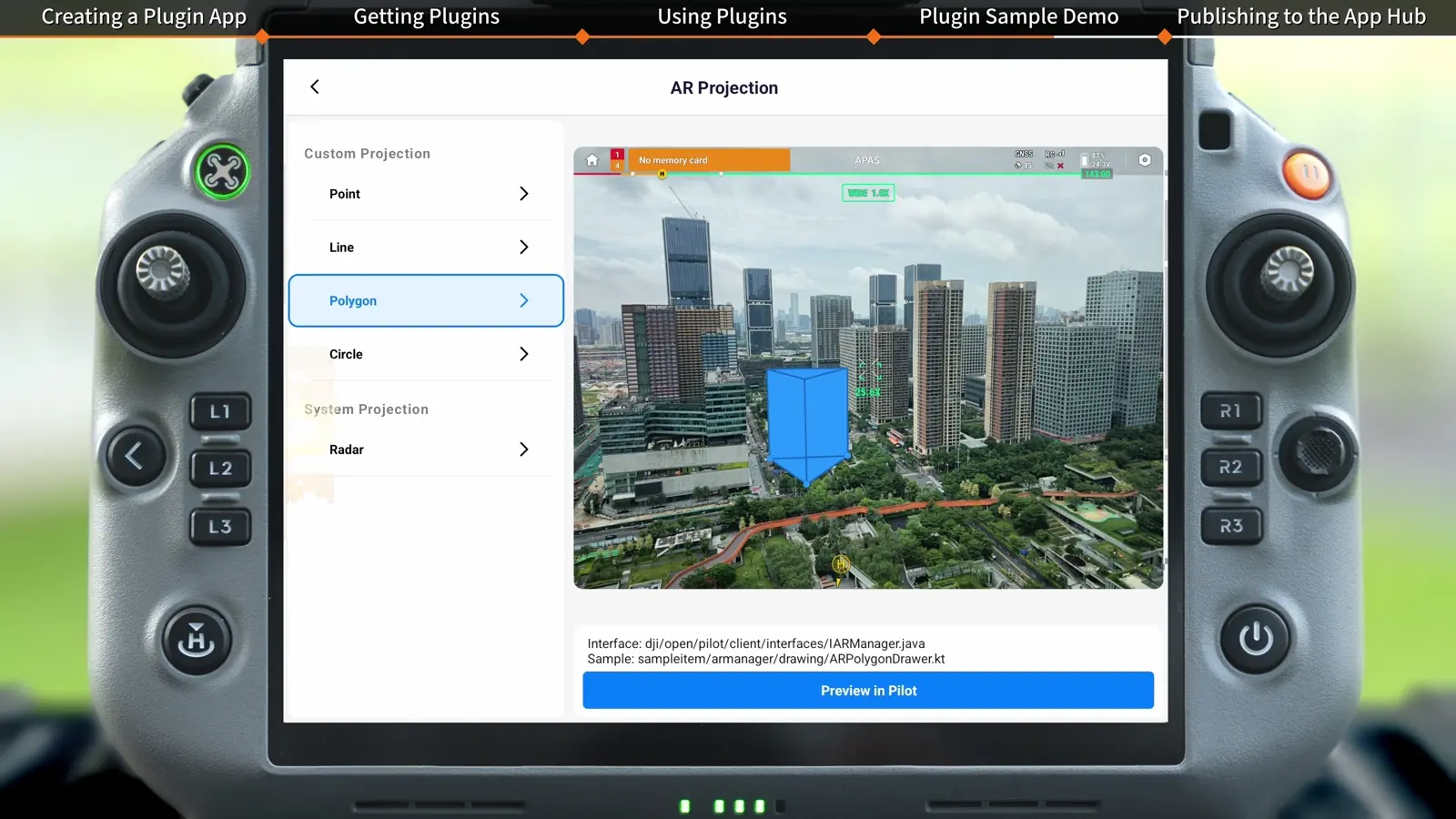
The demonstrated AR capabilities include points, lines, polygons represented as prisms, and circles represented as cylinders. These examples show how operational geometry can be overlaid in the view.
For a team acceptance exercise, compare the projected information with a known scene and ask whether it is readable at the working scale. Record the plugin version, task and operator steps with the deployment notes so the workflow can be repeated.
Submit a developed plugin to App Hub
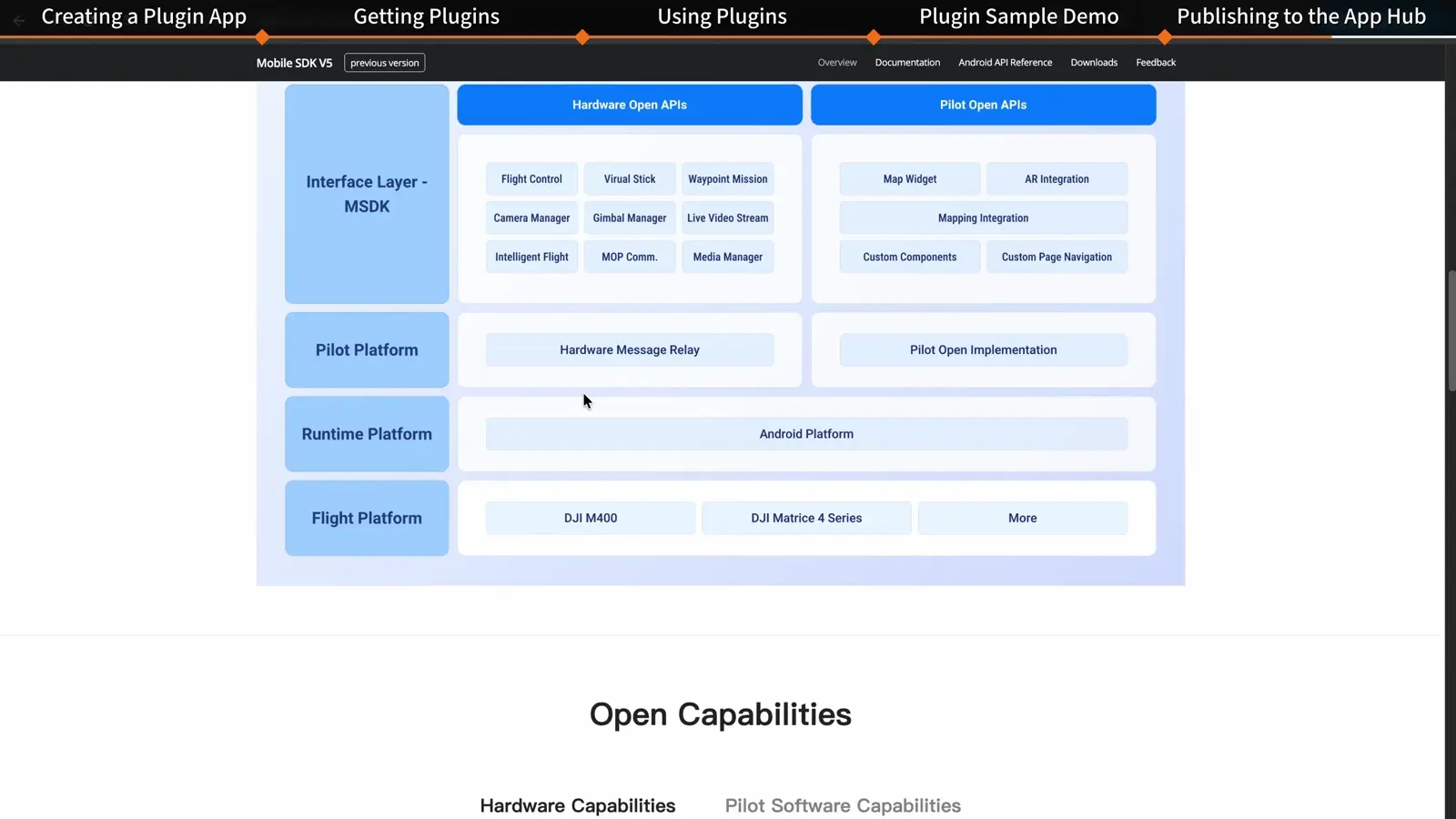
Publishing uses the official DJI developer channel. The video routes developers through Ecosystem Development, App Development and Mobile SDK to App Hub. Apply Now opens the listing application.
The listing review result is sent by email. An approved plugin is then listed in App Hub; submission and publication are separate stages.
- On the DJI Developer website, open Ecosystem Development → App Development → Mobile SDK.
- Find App Hub and choose Apply Now.
- Complete the app listing information and submit the application.
- Keep the published description aligned with the functions and supported workflow the team has actually tested.
Your session checklist
Use these points to review the workflow with your crew.
- Operational task defined
- Plugin details reviewed
- Installation completed
- Plugin enabled in Plugin Management
- Floating window and minimize controls tested
- Version and operator procedure recorded
Questions & answers
Why does an installed plugin not appear in Pilot 2?
The tutorial states that plugins are disabled by default after installation. Return to Plugin Management and enable the plugin; its floating button appears when it starts successfully.
Can a plugin operate within the Pilot 2 interface?
Yes. Its floating window displays the plugin UI and can call supported interface capabilities, allowing the demonstrated operations without switching apps.
What AR geometry does the tutorial demonstrate?
It shows points, lines, polygons as prisms, and circles as cylinders through MSDK interfaces.
Video transcript
Read the complete transcript
Welcome to our tutorial video for DJI Pilot 2 open plugins
where we will walk you through the complete process
from creating and developing an App to publishing it and using it
With the new MSDK interfaces
developers can access core DJI Pilot 2 capabilities such as AR projection
drawing boxes in the live view
drawing map elements
and UI layout
Combined with the existing device control interfaces
these capabilities enable end-to-end workflow orchestration and smooth interaction for industry operations
On the DJI Developer Platform (https://developer.dji.com/en/)
go to your personal center page
and click "Create App" to apply for an App Key
Send the activation email
then activate the app via the link in the email
Before developing a plugin
refer to the "Developer Documentation"
Developer Documentation
and "API Reference" on the DJI Developer website to get started quickly and build your own plugin App
On the DJI Pilot 2 homepage
tap "Plugin Management" to enter the Plugin Management page
Tap "Open App Hub"
browse the plugin list in the App Hub
and find the plugin you need
Go to the plugin details page and tap "Get Plugin"
After installation
the plugin is disabled by default
Go to the Plugin Management page to enable it
Once the plugin starts successfully
a floating plugin button appears in DJI Pilot 2
Tap the floating button to expand the floating window
The UI you developed is displayed in the window and can call other interface capabilities
You can complete operations within DJI Pilot 2 without switching apps
Tap the jump button in the floating window to quickly go to the plugin App
Tap the minimize button on the floating window to collapse the plugin back into the floating button
When you no longer need a plugin
you can disable or uninstall it on the Plugin Management page
By calling MSDK interfaces
you can use various DJI Pilot 2 capabilities
such as projecting points
lines
polygons (prisms)
and circles (cylinders) in AR
Publishing your plugin to the App Hub through the official channel helps it reach more users
On the DJI Developer website
click Ecosystem Development
App Development > Mobile SDK
App Hub
Apply Now
Fill in the App listing information and submit the listing application
Thank you for watching