4.8.1 Remote Controller Main Interface
PDF p. 75After the remote controller is turned on, it enters the main interface of the flight application by default. PDF p. 75
In the main interface of the flight application, slide down from the top of the touch screen or slide up from the bottom of the touch screen to display the system status notification bar and navigation keys, and tap the "Home" button to enter the "Remote Controller Main Interface". Swipe left and right on the "Remote Controller Main Interface" to switch between different screens, and enter other applications as needed. PDF p. 75
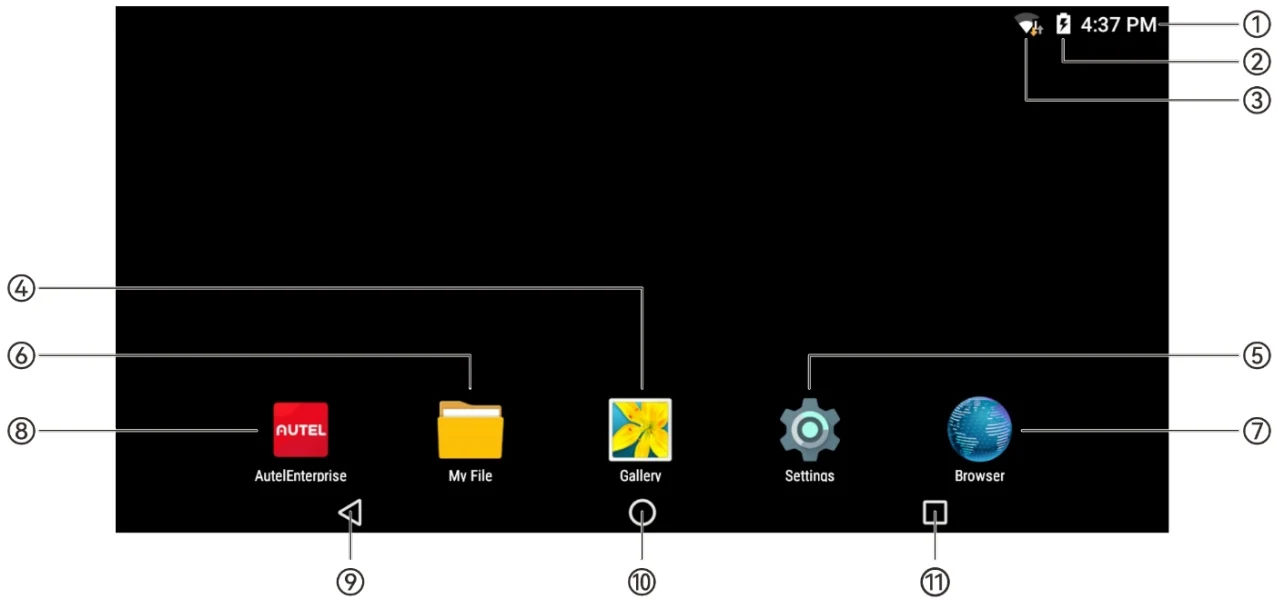
| No. | Name | Description |
| 1 | Time | Indicates the current system time. |
| 2 | Battery Status | Indicates the current battery status of the remote controller. |
| 3 | Wi-Fi Status | Indicates that Wi-Fi is currently connected. If not connected, the icon is not displayed.You can quickly turn on or off the connection to Wi-Fi by sliding down from anywhere on the "Remote Controller Interface" to enter the "Shortcut Menu". |
| 4 | Gallery | The app is installed in the system by default. Tap it to view the images saved by the current system. |
| 5 | Settings | The system settings app of the remote controller. Tap it to enter the settings function, and you can set system functions of the remote controller. |
| 6 | My File | The app is installed in the system by default. Tap it to manage the files saved in the current system. |
| 7 | Browser | The app is installed in the system by default. When the remote controller is connected to the Internet, you can use it to browse web pages and access Internet resources. |
| 8 | Autel Enterprise | Flight software. The flight application starts by default when the remote controller is turned on. For details, please refer to "Chapter 6 Flight Application". |
| 9 | "Back" Button | Tap the button to return to the previous page. |
View the original table / diagram
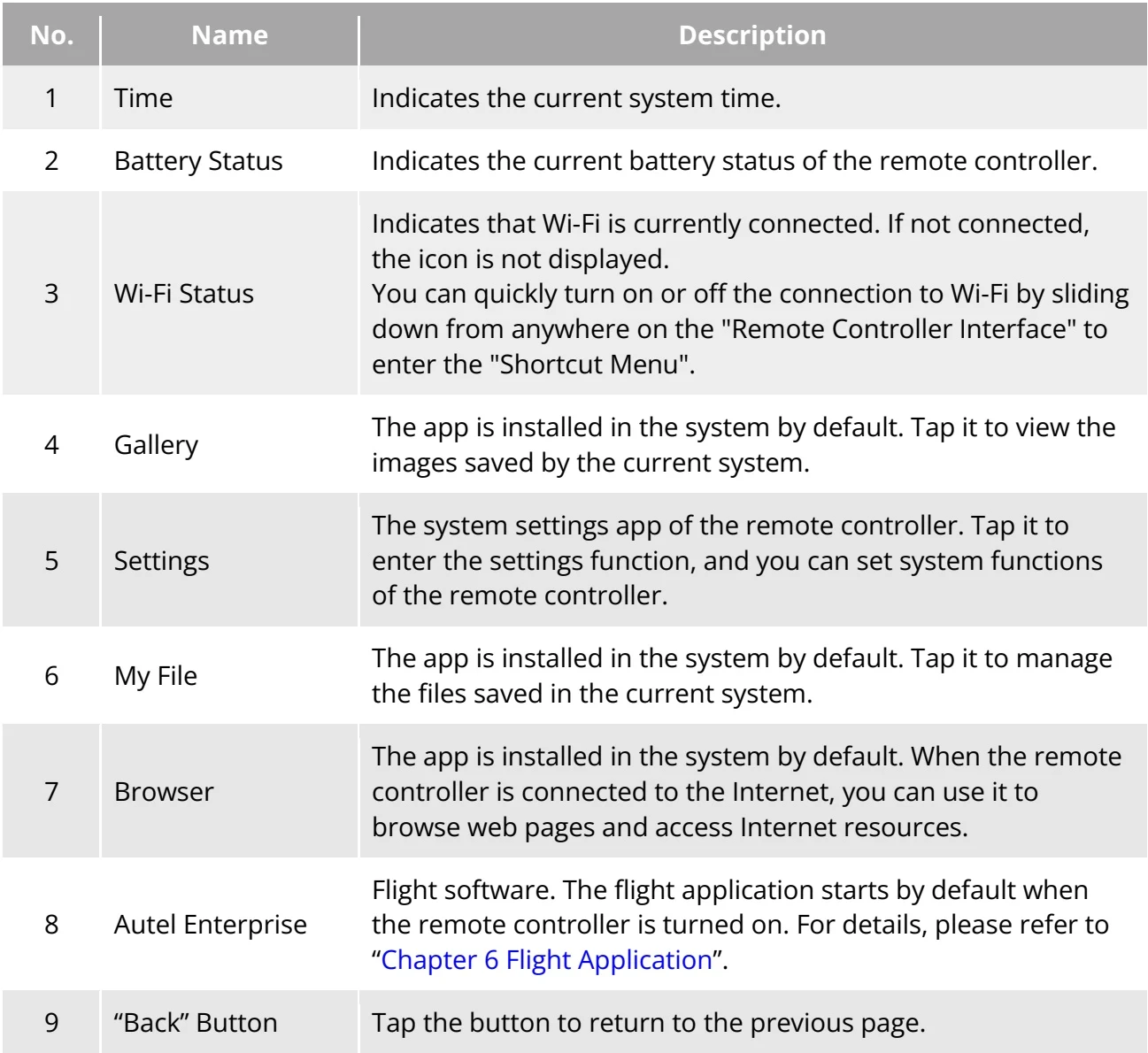
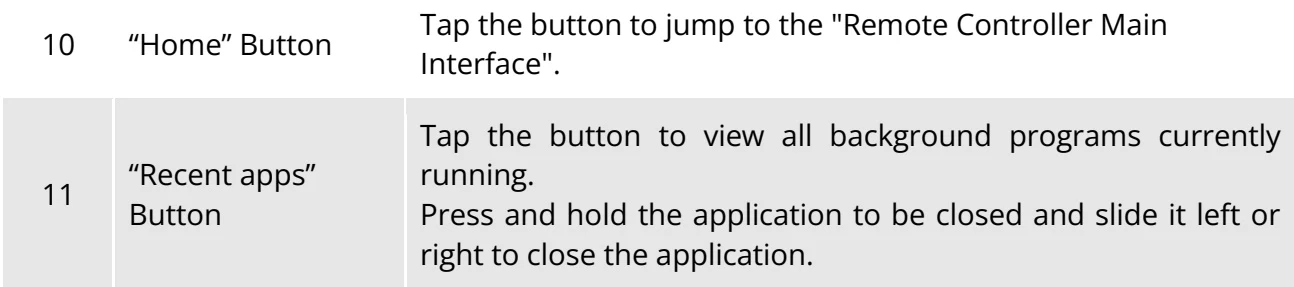
| 10 | "Home" Button | Tap the button to jump to the "Remote Controller Main Interface". |
| 11 | "Recent apps" Button | Tap the button to view all background programs currently running.Press and hold the application to be closed and slide it left or right to close the application. |
View the original table / diagram
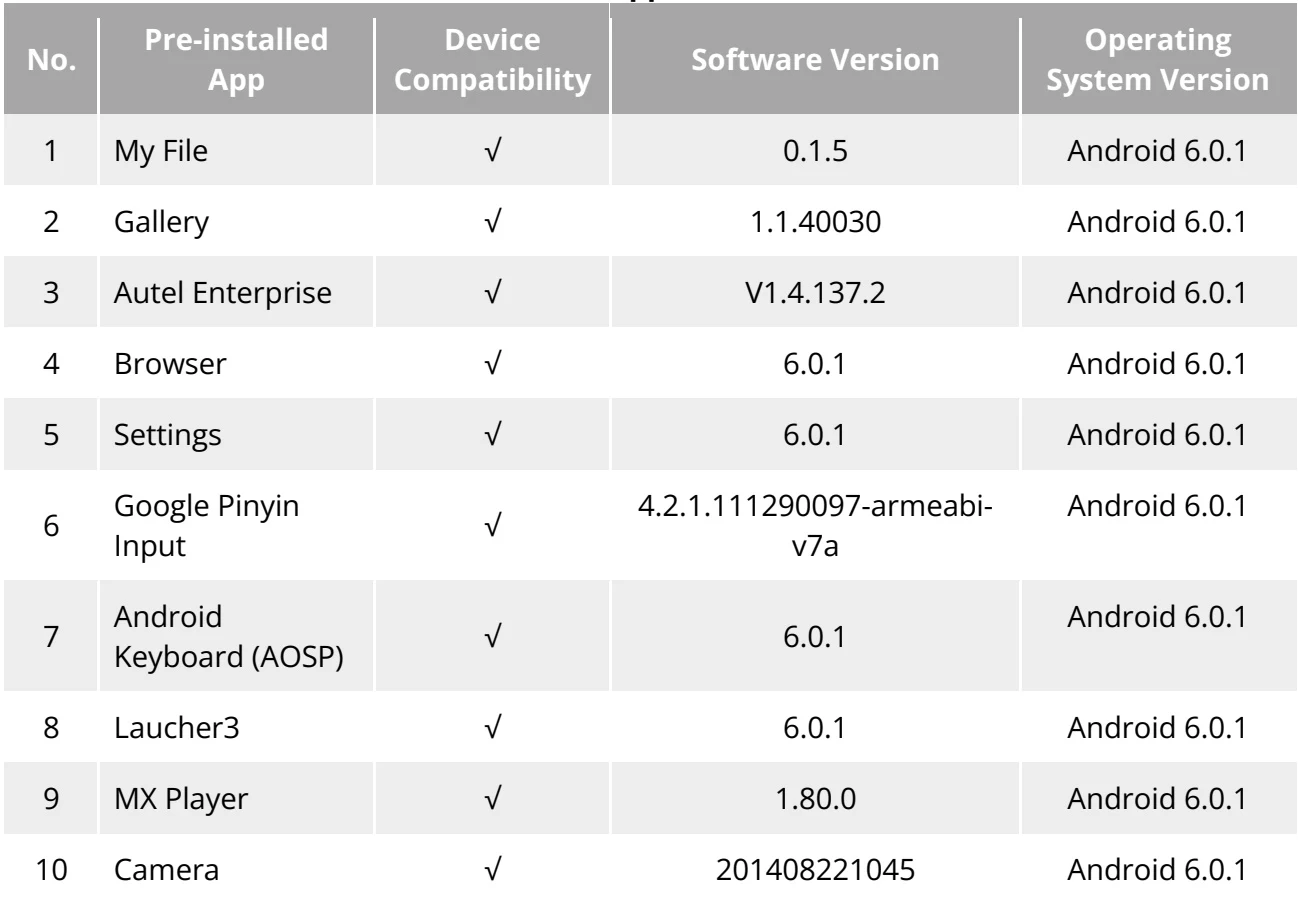
| No. | Pre-installed App | Device Compatibility | Software Version | Operating System Version |
| 1 | My File | √ | 0.1.5 | Android 6.0.1 |
| 2 | Gallery | √ | 1.1.40030 | Android 6.0.1 |
| 3 | Autel Enterprise | √ | V1.4.137.2 | Android 6.0.1 |
| 4 | Browser | √ | 6.0.1 | Android 6.0.1 |
| 5 | Settings | √ | 6.0.1 | Android 6.0.1 |
| 6 | Google Pinyin Input | √ | 4.2.1.111290097-armeabi-v7a | Android 6.0.1 |
| 7 | Android Keyboard (AOSP) | √ | 6.0.1 | Android 6.0.1 |
| 8 | Laucher3 | √ | 6.0.1 | Android 6.0.1 |
| 9 | MX Player | √ | 1.80.0 | Android 6.0.1 |
| 10 | Camera | √ | 201408221045 | Android 6.0.1 |
View the original table / diagram
4.8.2 Shortcut Menu
PDF p. 77Slide down from anywhere on the "Remote Controller Interface", or slide down from the top of the screen in any app to display the “Shortcut Menu”. PDF p. 77
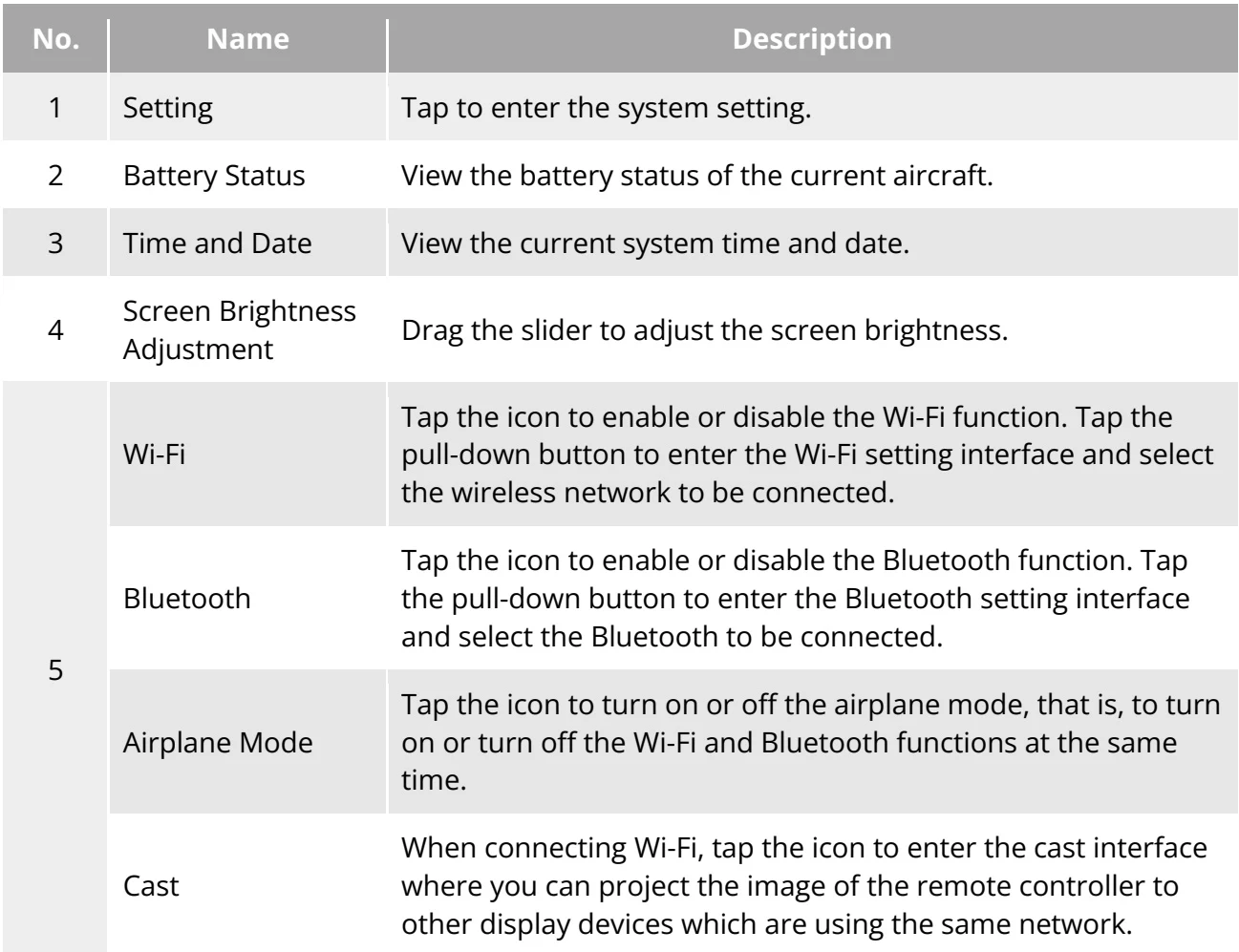
In the "Shortcut Menu", you can quickly set WLAN, Bluetooth, airplane mode, cast and screen brightness. PDF p. 77
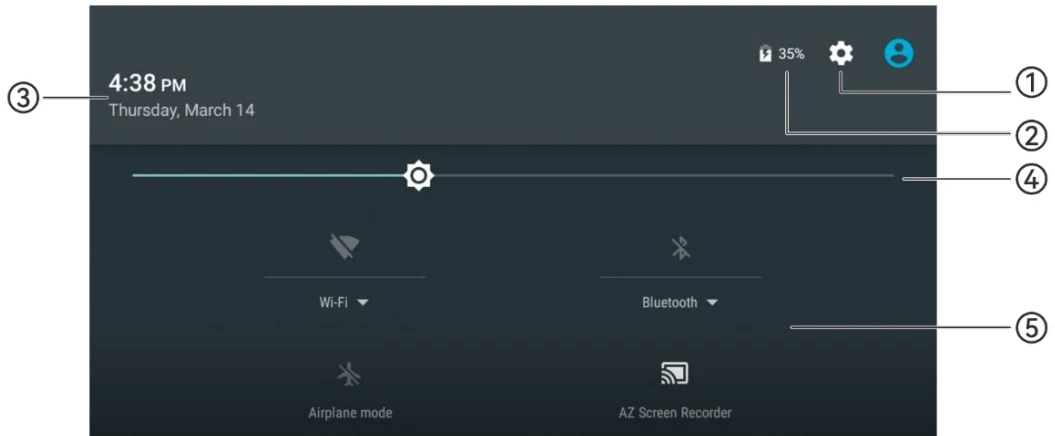
| No. | Name | Description |
| 1 | Setting | Tap to enter the system setting. |
| 2 | Battery Status | View the battery status of the current aircraft. |
| 3 | Time and Date | View the current system time and date. |
| 4 | Screen Brightness Adjustment | Drag the slider to adjust the screen brightness. |
| Wi-Fi | Tap the icon to enable or disable the Wi-Fi function. Tap the pull-down button to enter the Wi-Fi setting interface and select the wireless network to be connected. | |
| 5 | Bluetooth | Tap the icon to enable or disable the Bluetooth function. Tap the pull-down button to enter the Bluetooth setting interface and select the Bluetooth to be connected. |
| Airplane Mode | Tap the icon to turn on or off the airplane mode, that is, to turn on or turn off the Wi-Fi and Bluetooth functions at the same time. | |
| Cast | When connecting Wi-Fi, tap the icon to enter the cast interface where you can project the image of the remote controller to other display devices which are using the same network. |
View the original table / diagram