
On the "Mission/Favorites" interface, you can query, edit, favorite, and delete previously saved flight missions. PDF p. 139
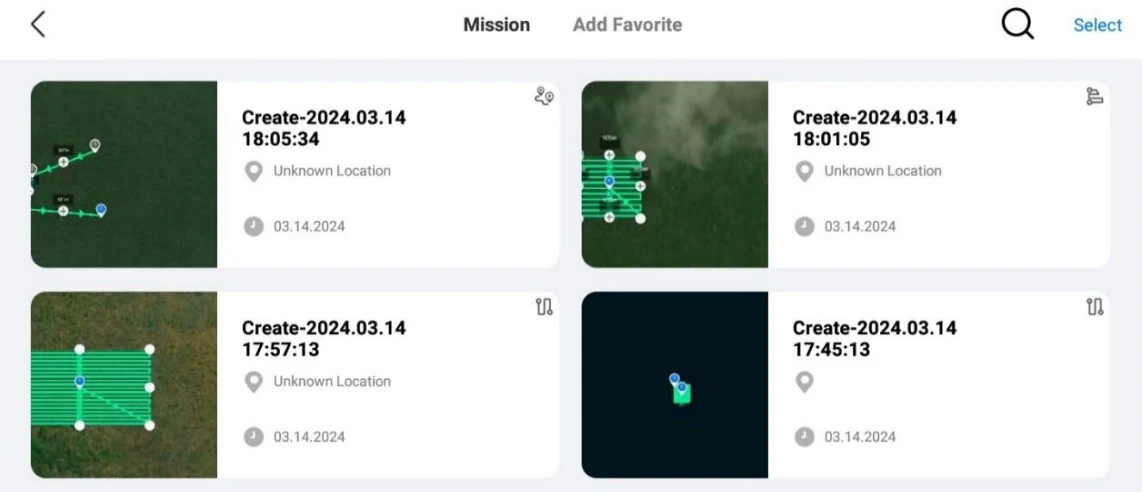
Query
PDF p. 139Tap the u Q u icon in the upper-right corner of the “Mission” interface and enter the desired content to quickly locate the corresponding historical flight mission. PDF p. 139
Edit
PDF p. 139Tap a historical flight mission on the “Mission” interface to enter the waypoint mission editing interface. Tap the u \neq n icon to edit the flight mission. PDF p. 140
Favorite
PDF p. 140
Delete
PDF p. 140Tap the "Select" button in the upper-right corner of the “Mission” interface, then single-select, multi-select, or select all the missions to be deleted, and then tap the illustrated icon. After a dialog box pops up, tap the “Confirm” button. This way, the selected flight missions are deleted. PDF p. 140
Original instruction with its control symbol

Export
PDF p. 140Tap the "Select" button in the upper-right corner of the “Mission” interface, then single-select, multi-select, or select all the missions to be deleted, and then tap the illustrated icon. After a dialog box pops up, tap the “Confirm” button. This way, the selected flight missions are deleted. PDF p. 140
Original instruction with its control symbol

Tip
PDF p. 140The current version only supports exporting waypoint missions. PDF p. 140